

Chocolate Brown
Explore a deeper natural shade while keeping the shape of your original hairstyle.
AI hair color preview
Try a new hair color on your own photo. Choose a shade or describe your look, then use our AI hair color changer to create a preview you can compare and download.
Upload one person photo. Choose a color or describe your own.
Sign in for 10 free credits
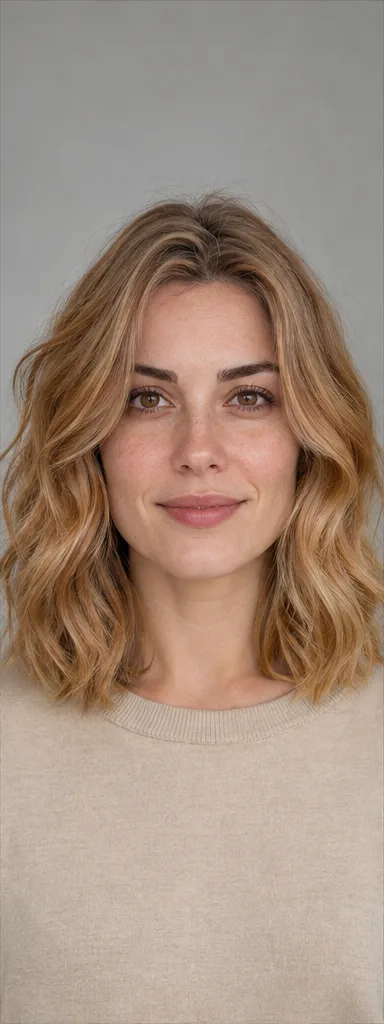
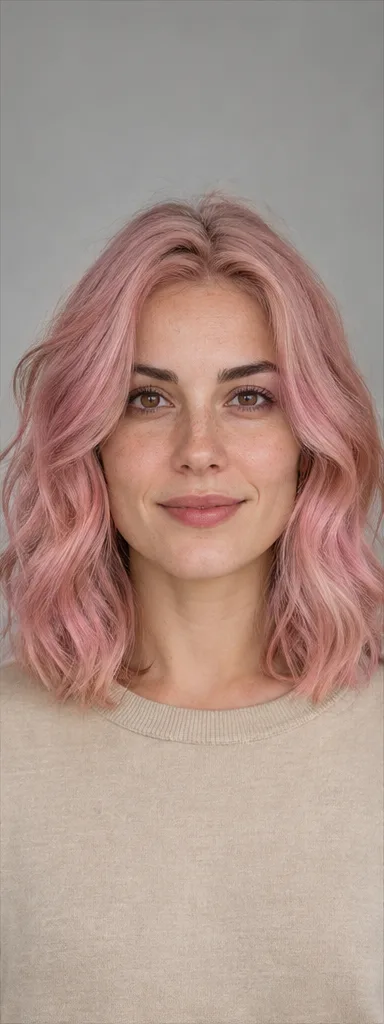
See the difference
Compare a deeper brown, a warmer blonde, and a playful pink on the same face. Keeping the source photo consistent makes differences in contrast and overall mood easier to see. These AI-created illustrations explain the idea; your generated preview will depend on your photo and settings.
Explore a deeper natural shade while keeping the shape of your original hairstyle.
Compare a warmer, lighter direction with your starting hair color.
Preview a bold color direction before considering a major change.
Three steps
Use one JPG or PNG up to 10 MB. Pick a sharp portrait with your hair clearly visible in even light.
Select a hair color preset, then edit the description if needed. For highlights, describe their color and placement. Selecting a shade does not start generation.
Sign in, check the displayed credit cost, and click Generate. Compare the result with your original, download it, or try another shade on the same source photo.
Make it your own
Edit hair color with a description when a preset is only a starting point. State the base shade first, then describe roots, lighter strands, or transitions. These examples are prompt ideas, not measured guarantees of precision.
Compare honey, ash, or platinum tones on the same photo. Try: “Warm honey blonde throughout, with natural highlights and shadows. Keep my haircut and length.” A lighter preview does not predict how your real hair will lift with bleach.
Describe the base color and where lighter strands should appear. Try: “Keep my dark brown base and add subtle caramel strands around the face.” Review the generated placement before using the image.
For a virtual hair dye try-on with ombré, describe both the roots and ends. Try: “Dark roots fading gradually into warm honey blonde ends, with a soft blend.” The generated transition can vary, so check where the lighter color starts.
Compare before you dye
Start with two or three directions rather than every shade at once. Use the same original photo and similar generation settings so you can focus on the color. This is a visual comparison, not an automatic hair color quiz or personalized color analysis.
Use the online hair color tester to compare a deeper brown and a lighter blonde on the same source photo. Look at the contrast around your face and check the whole portrait, not just the hair.
For a ginger hair filter effect, choose Copper or describe a soft ginger tone, then compare it with ash brown. Keep your reference photo unchanged; tinted room lighting can skew the comparison.
Once you have a favorite shade, use the preview as a starting point for a conversation with your stylist.
Why choose our tool
Our online hair color changer brings photo-based previews, preset shades, and custom instructions into one workspace. Explore a new look with controls you can edit and credit costs you can check before generating.
Upload your portrait to see a color direction alongside your own face and overall look. Your photo provides the starting point for the AI hair color preview.
Choose from 12 natural and bold color presets to fill in a starting description without writing it from scratch. Edit the wording if you want to refine the shade.
Keep your photo uploaded and switch presets to prepare the next request. You can try another shade without uploading the same image again, then click Generate when you are ready.
Use the tool in a desktop or phone browser. Upload a photo, prepare your color description, and sign in when you are ready to generate.
The workspace shows the cost for your selected settings. New users get 10 credits after sign-in; GPT Image 2 at 1K uses 2 credits per preview with one person photo.
Check the generated image against your original and download the look you want to keep. Save it as a visual reference to discuss with your stylist.
For edits beyond hair color, use our AI image editor. To explore clothing in the same photo, try the AI clothes changer.
FAQ
An AI hair color changer edits the hair color in an uploaded photo from a preset or written description. It creates a visual preview for comparing shades before dyeing; it does not predict the exact result of a real dye formula. A dark-to-light preview does not show the bleaching required, and screen colors can differ from real hair.
You can choose from 12 presets, including natural black, chocolate brown, honey blonde, platinum blonde, copper, cherry red, and pastel pink. For purple, blue, ash gray, or burgundy, enter the color in your custom description. Custom colors are editing requests, and the generated shade can vary.
Yes. Keep your uploaded photo, select a shade, and generate a preview. Then choose another shade and generate again from the same original. Each preview is a separate generation and uses the credit cost shown for your settings.
Yes. New users receive 10 credits after sign-in. With one person photo, GPT Image 2 at 1K costs 2 credits per image, allowing up to five previews from those credits. Further generations require sufficient credits. Other models and settings cost more; check the cost before generating.
No. You need to sign in before generating. You can browse shades and prepare your photo and description beforehand. After signing in, check your settings and click Generate yourself.
You can request a hair-color-only edit. The instructions ask the AI to preserve your face, hairstyle, length, skin tone, lighting, hair texture, clothing, and background. Generative models can still alter details, so compare the result with the original before using it.
Yes. Open this page in your phone browser, upload a supported photo, select a shade, and generate after signing in. No separate hair color app download is required; this is an AI-generated photo edit, rather than a live camera filter.
Yes. Use the custom description to specify the base color, lighter strands, root color, and transition. These are editing requests, not separate precision controls; placement and blending can vary between results.
Use a clear, well-lit JPG or PNG up to 10 MB, with one person and minimal hair obstruction. Completed results have a download action in the workspace. Very dark lighting, hats, and blurred hair make color comparison less useful.
No. It creates previews for you to compare; it does not analyze your skin tone, score your appearance, or automatically choose a shade. Compare light and dark or warm and cool options, then use your favorite preview to talk with a stylist, especially before bleaching or a major color change.
Upload a photo, choose your shade, and compare a new look online. New users get 10 credits after sign-in; GPT Image 2 at 1K uses 2 credits per single-photo preview.
try on hair colors onlineMore tools