How to Use Ideogram 4.5 Precise Edit
Upload a photo. Describe one change. Keep the rest of your image intact.
What Is Ideogram 4.5 Precise Edit?
Ideogram 4.5 Precise Edit is an AI image editing capability developed by Ideogram. It lets you modify an existing image using natural-language instructions while preserving areas you did not ask to change.
For example, you can change a brown handbag to red without intentionally changing the background, replace the words on a storefront sign, or adjust a product's material while keeping its original shape.
One important feature is its handling of unchanged pixels. In Precise Edit mode, the model uses a process that restores unaffected pixels from the source image, reducing the unintended changes that can occur when an entire image is regenerated.
Ideogram 4.5 also supports successive edits, allowing you to refine one image through multiple instructions.
According to Ideogram's official model overview, the model focuses on targeted changes and consistency across editing steps.
How to Use Ideogram 4.5 Precise Edit in 5 Steps
To use Ideogram 4.5 Precise Edit on Image to Image AI, sign in with Google, choose Edit Image, upload a photo, enter your change, select a quality tier, and click Generate image. You receive an edited image to review and download. Each edit requires credits; high-precision editing is enabled automatically.
You need one image you own or have permission to edit and a text prompt. Check generated text and unchanged details before using the result.
Step 1: Open Our Tool and Choose Edit Image
Open the Ideogram 4.5 tool on Image to Image AI. Click Log in and sign in with Google, then select Edit Image above the workspace.
Check that Model shows Ideogram 4.5. If another model is selected, open the model menu and choose Ideogram 4.5. Use Edit Image to change an existing photo; Generate Image creates a new image from text.
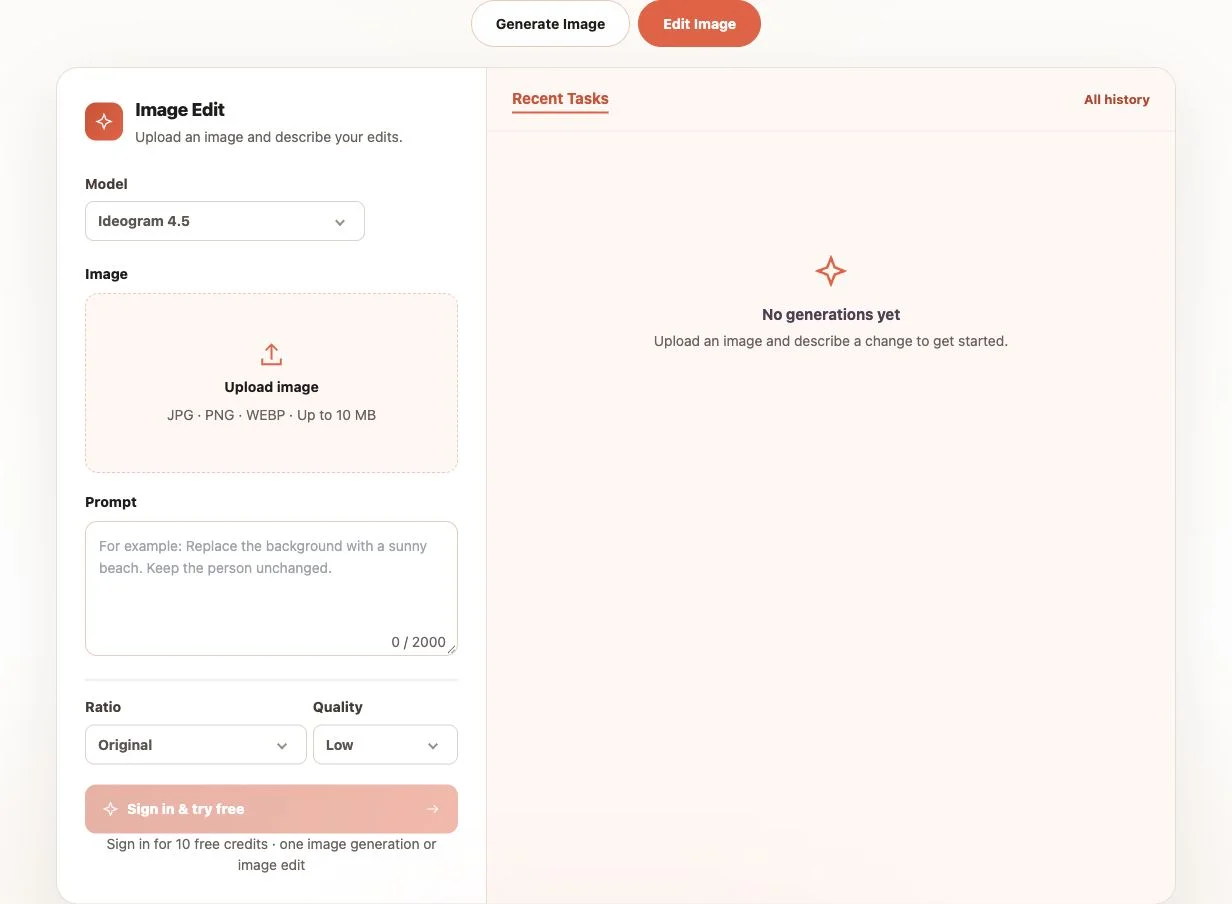
Step 2: Upload Your Original Image
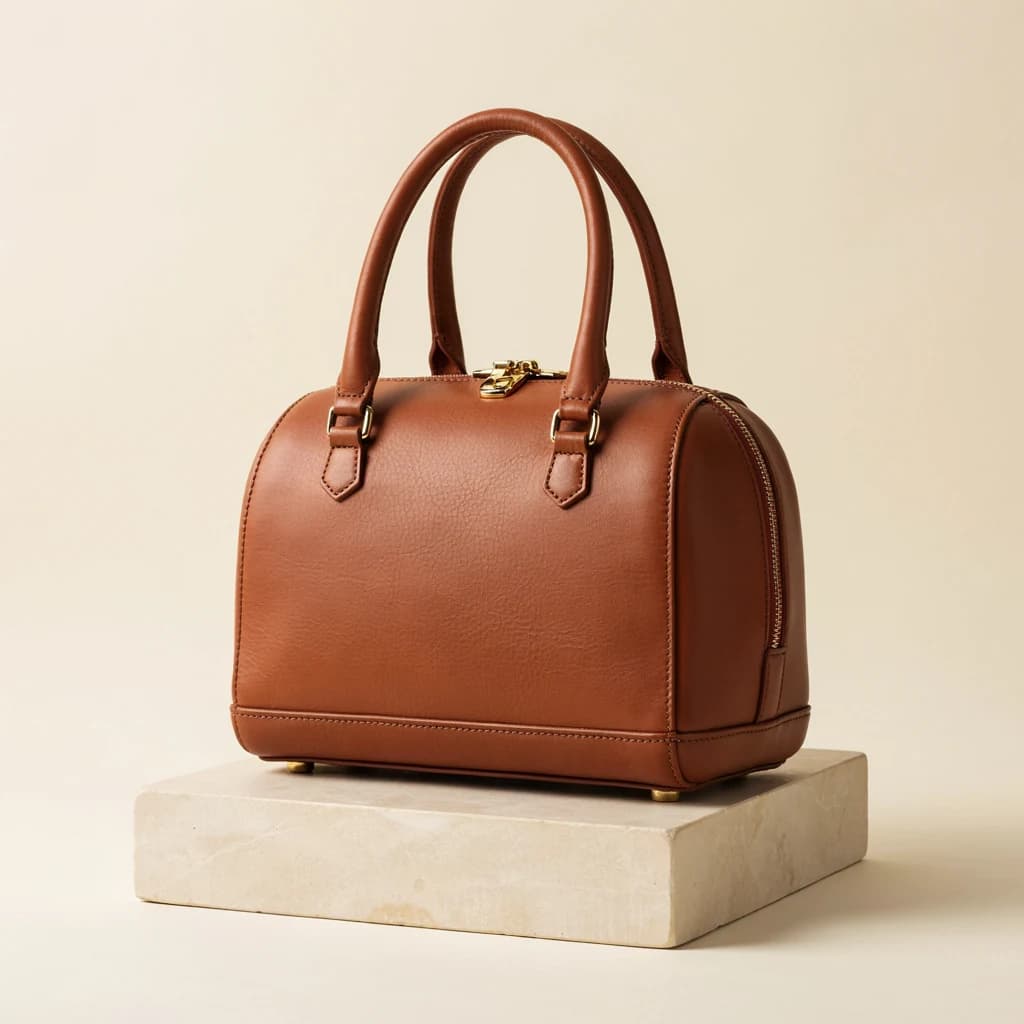
Click Upload image and select a JPG, PNG, or WebP file up to 10 MB. Use a clear photo in which the object or text you want to change is visible.
For example, upload the brown handbag photo below. If you add more images, click the thumbnail of the photo you want to edit to make it the primary image. The other images act as references. Signed-in users with available credits can add up to 4 extra references, for 5 images total.
Only upload images you have permission to use. Each extra reference adds 2 credits to the edit cost.
Step 3: Enter One Specific Change in Prompt
In Prompt, describe what should change and what should stay the same. The field accepts up to 2,000 characters.
For the handbag example, enter:
"Change the handbag from brown leather to deep red leather. Keep the original shape, stitching, lighting, camera angle, and background unchanged."
Use Change + Target + Preserve: name the change, identify the object, and list the details to keep. For text replacement, put the exact new wording in quotation marks. Start with one main change so you can check the result clearly.
Step 4: Choose Quality and Check the Credit Cost
Open Quality and choose the tier your available credits cover:
- Low: 5 credits per image.
- Medium: 10 credits per image.
- High: 35 credits per image.
One primary image is included. Each extra reference adds 2 credits. For example, Medium with one primary photo costs 10 credits; Medium with one primary photo and one extra reference costs 12 credits.
Precise Edit is automatic at every quality tier. You do not need to select a separate editing-precision option. Ratio stays on Original in this mode, and there is no extra ratio charge. Quality controls the quality tier, not a promised 1K, 2K, or 4K output size.
Eligible new users receive 10 introductory credits after Google sign-in. Before submitting, check the total shown on Generate image · [number] credits. If you do not have enough credits, view pricing and credits.
Step 5: Generate, Review, and Download Your Edit
Click Generate image · [number] credits once your photo and prompt are ready. Follow the request in Recent Tasks. When it finishes, click the result to open the larger preview.
Compare the result with the original:
- Did the requested color, object, or text change correctly?
- Are the product shape, stitching, lighting, and background still accurate?
- Is replacement text spelled correctly and readable?
- Did any details change that you wanted to preserve?
In our handbag result, the body became red but the handles stayed brown. Precise Edit does not guarantee that every requested detail will be correct.
If you want to revise the instruction using the original photo, click Reprompt. To make another change using the edited result as the new source, click Continue editing. Review the updated prompt and credit cost before submitting another edit.
When you are satisfied, click the Download icon on the result card or Download in the larger preview.
Before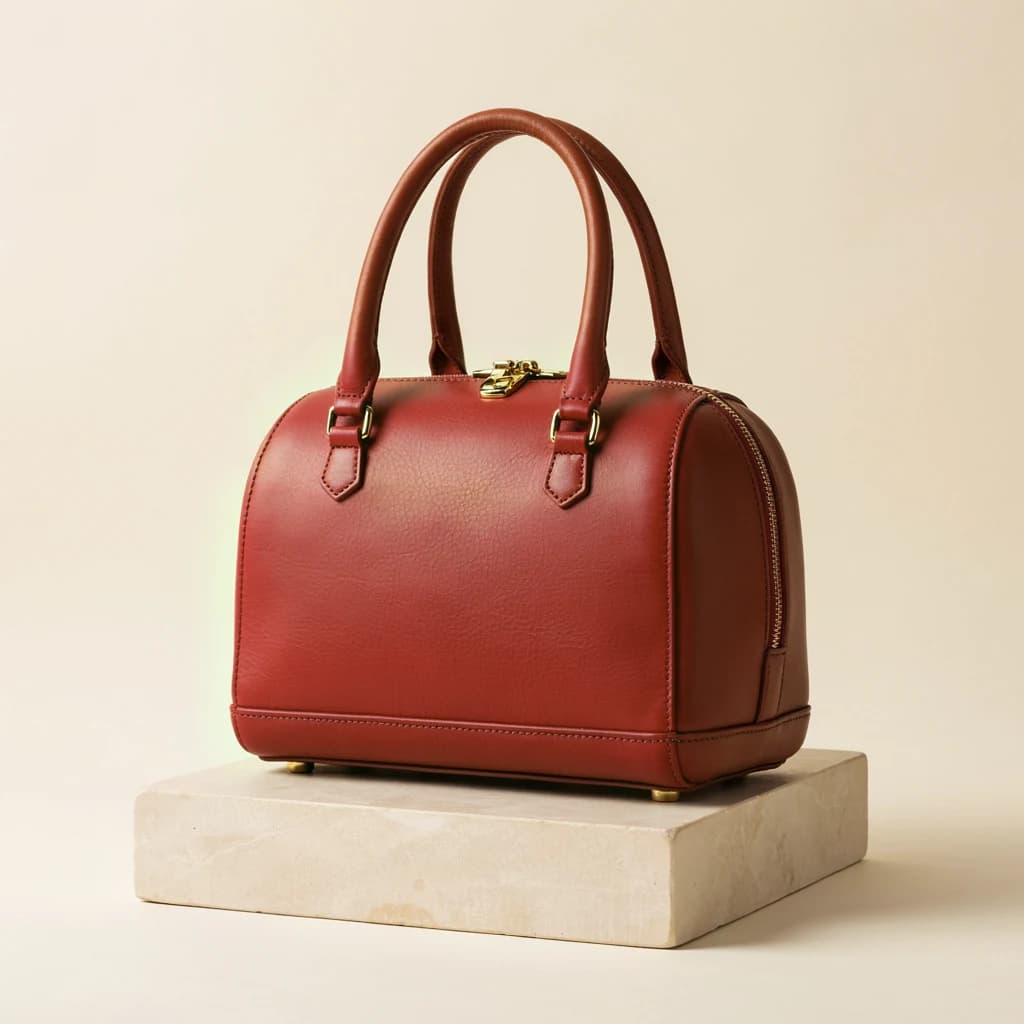 After
AfterActual prompt: “Change the handbag from brown leather to deep red leather. Keep the original shape, stitching, lighting, camera angle, and background unchanged.”
4 Ideogram 4.5 Precise Edit Examples
The following examples show how to write prompts for common editing tasks. The handbag and storefront comparisons below are our recorded Ideogram 4.5 outputs. The material and multi-step illustrations are conceptual examples, not Ideogram model tests.
Example 1: Change a Product Color Without Replacing the Background
Task: Change a handbag from brown to red.
Prompt:
"Change the handbag from brown leather to deep red leather. Keep the original shape, stitching, lighting, camera angle, and background unchanged."
What to check: The bag color changes while its structural details and the surrounding scene remain consistent.
BeforeAfterActual prompt: “Change the handbag from brown leather to deep red leather. Keep the original shape, stitching, lighting, camera angle, and background unchanged.”
Example 2: Replace Text on a Storefront Sign
Task: Replace the wording on an existing sign.
Prompt:
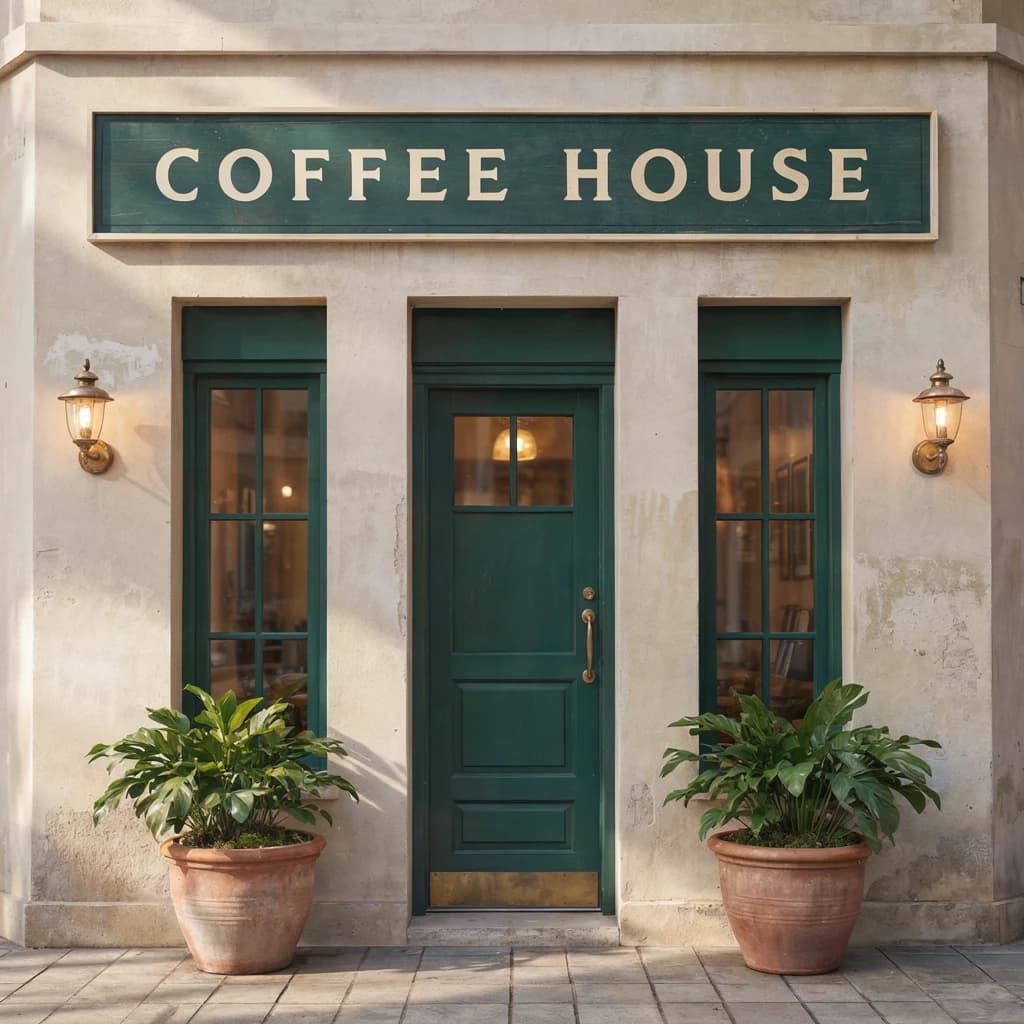
"Replace the text on the storefront sign with 'COFFEE HOUSE'. Keep the original font style, sign colors, perspective, and surrounding building unchanged."
What to check: Correct spelling, readable lettering, natural perspective, and minimal changes outside the sign.
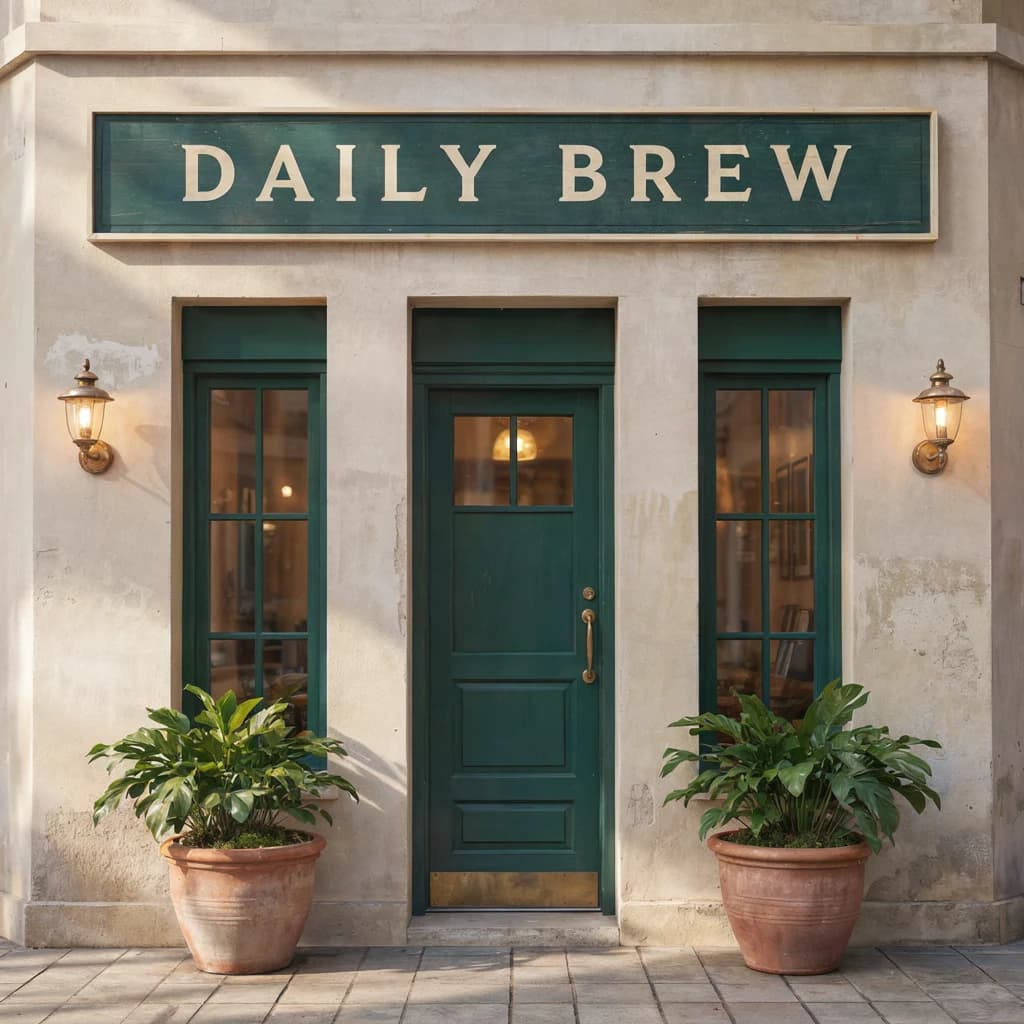 Before
 After
AfterActual prompt: “Replace the text on the storefront sign with 'COFFEE HOUSE'. Keep the original font style, sign colors, perspective, and surrounding building unchanged.”
Example 3: Refine a Lamp’s Surface Finish and Lighting
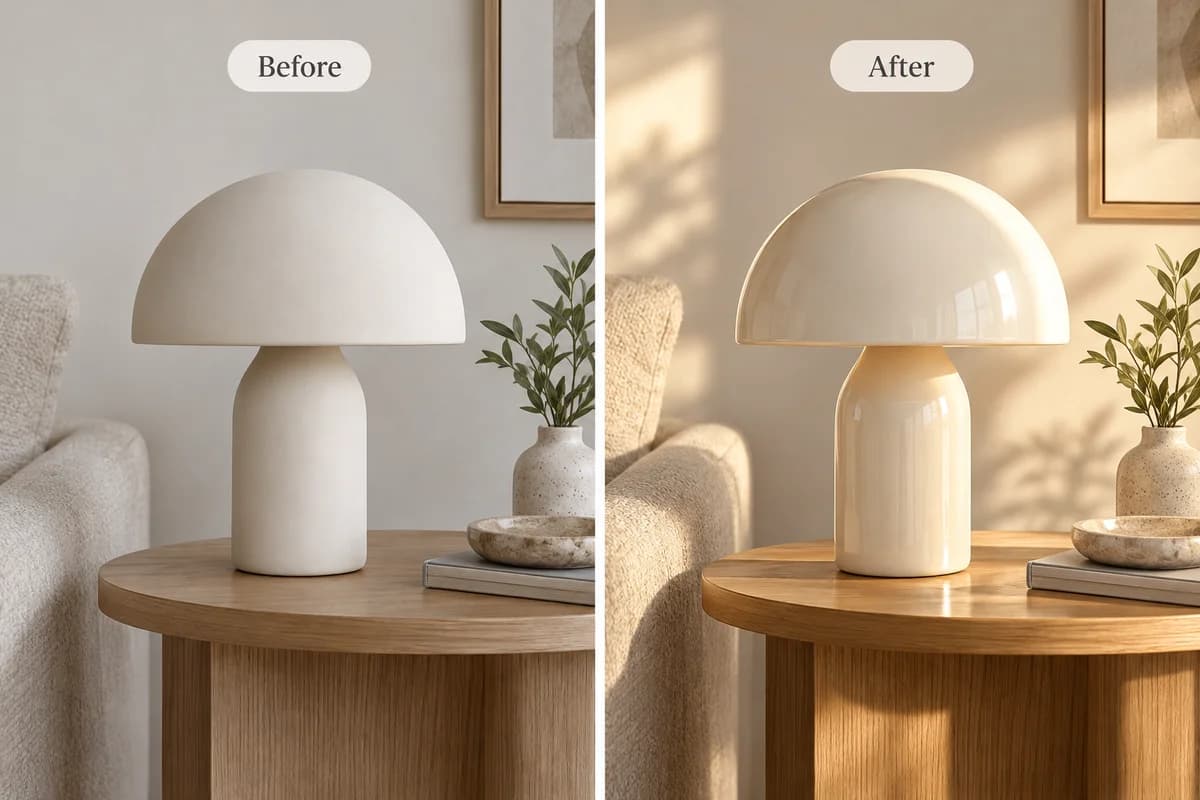
Task: Change a matte ivory lamp to a glossy finish and give the scene warm sunlight.
Suggested prompt:
"Change the ivory lamp's matte surface to a glossy ceramic finish and replace the cool lighting with warm sunlight. Preserve the lamp's shape, position, table, and surrounding objects."
What to check: The surface reflections and lighting match your instruction, while the lamp's silhouette and the room layout remain consistent.
Example 4: Recolor a Water Bottle, Then Change Its Background
Task: Make two successive changes to one product image.
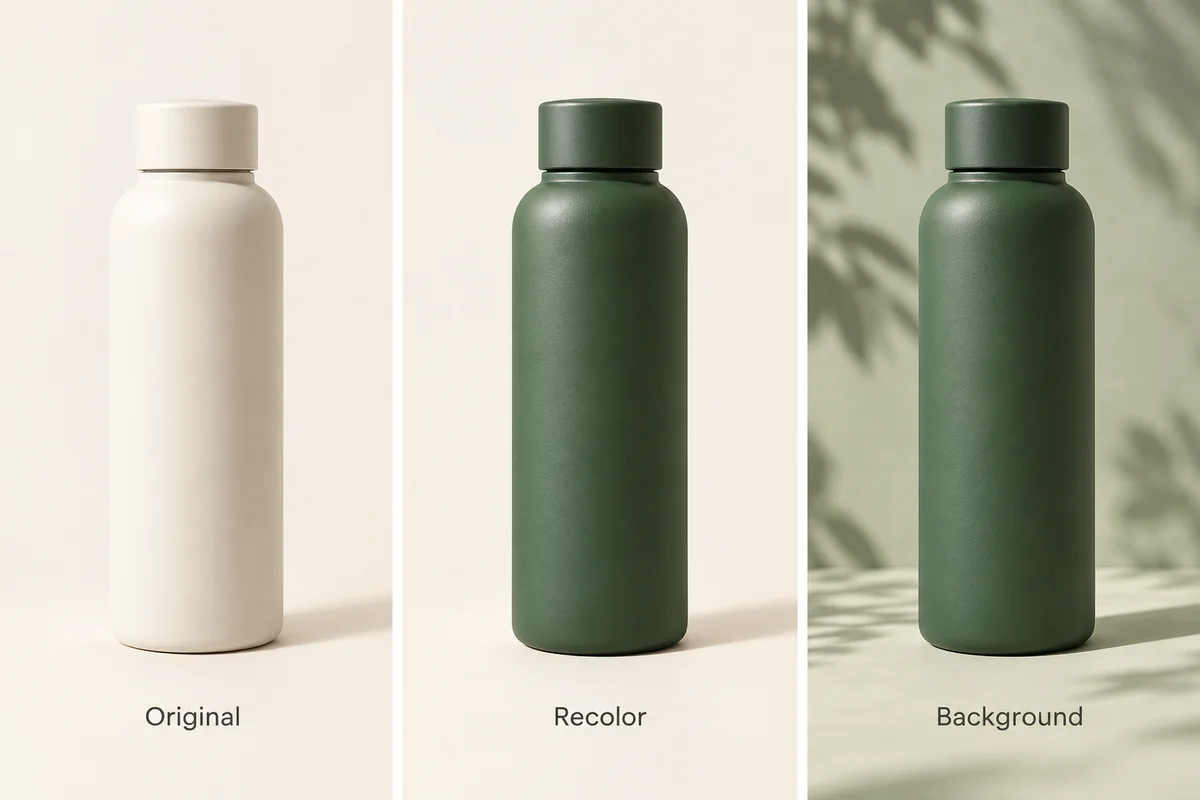
Start with a photograph of a cream-colored water bottle. The conceptual illustration below shows the original, a green version, and the green bottle against a new background.
Edit 1 — Change color
"Change the cream-colored water bottle and cap to forest green. Keep the shape, position, lighting, and background unchanged."
Review the first result. On our tool, click Continue editing to use that result as the source for the next change.
Edit 2 — Change the background
"Change the background to a soft sage-green studio backdrop with leaf shadows. Keep the forest-green bottle, cap, shape, and position unchanged."
What to check: Compare the bottle's shape and color at each stage. Each new edit requires credits; review the cost before submitting.
Ideogram 4.5 Precise Edit vs Regular Edit
Ideogram 4.5 offers different editing workflows through its API. The most important difference is how unchanged parts of an image are handled.
| Feature | Regular Edit | Precise Edit |
|---|---|---|
| API edit precision | `regular` | `high` |
| Editing workflow | Generation-based edit | Precision-oriented edit |
| Unchanged-pixel restoration | Not the same restoration mechanism | Supported |
| Main purpose | General image editing | Targeted edits with stronger preservation |
| Multi-step workflow | Supported | Designed to reduce unwanted drift |
Our tool uses Precise Edit automatically for Ideogram 4.5 image edits at Low, Medium, and High quality. There is no Regular Edit switch to select. Quality and edit precision are separate settings; changing Quality does not disable Precise Edit.
Precise Edit is designed for targeted changes with stronger preservation of unchanged areas. Always review your result because unwanted changes can still occur.
How to Get Better Ideogram 4.5 Precise Edit Results
1. Describe One Main Change at a Time
Instead of asking for a new color, material, background, and camera angle in a single edit, begin with the most important change.
2. Specify What Should Remain Unchanged
Mention important details such as the subject's identity, product shape, logo, typography, composition, or lighting.
3. Identify the Exact Target
Avoid vague prompts like "make the product better."
A more useful instruction is:
"Change the blue ceramic mug on the right to glossy red. Keep the other objects unchanged."
4. Add References for Specific Visual Details
On Image to Image AI, signed-in users with available credits can upload one primary image plus up to four additional references. Click the thumbnail of the image you want to edit to make it the primary image; the other images serve as references.
Use a reference to show the color, material, or visual style you want, and explain what to borrow from it in your prompt. Each extra reference adds 2 credits to the edit cost.
5. Review Each Edit Before Continuing
Compare each generated result with the source image. If an important detail changes unexpectedly, retry with a clearer instruction rather than continuing to edit the incorrect result.
Frequently Asked Questions About Ideogram 4.5 Precise Edit
1. How do I use Ideogram 4.5 Precise Edit online?
Sign in with Google on Image to Image AI, choose Edit Image with Ideogram 4.5 selected, upload your photo, enter a specific change, choose Quality, and click Generate image. Precise Edit is enabled automatically. Review the result before downloading it.
2. Can Ideogram 4.5 edit an existing photo?
Yes. Ideogram 4.5 supports editing existing images using text instructions. You can request targeted changes to objects, colors, materials, lighting, and image text.
3. What is the difference between Ideogram 4.5 Precise Edit and regular editing?
Precise Edit uses a high-precision workflow with unchanged-pixel restoration. Regular editing uses a generation-based workflow without the same preservation mechanism. Our tool automatically uses Precise Edit for Ideogram 4.5 edits; it does not offer a Regular Edit switch.
4. How can I change text in an image using Ideogram 4.5?
Upload the image and specify the exact replacement text in quotation marks. Tell the model to preserve the sign's original font style, placement, perspective, and surrounding scene. Review the output for spelling errors.
5. Can Ideogram 4.5 preserve the original background?
Yes, preserving the original background is one of its intended editing uses. Specify the part you want to change and ask the model to leave the background unchanged. Always verify the output because preservation is not guaranteed in every situation.
6. Can I make multiple edits to the same image?
Yes. You can use one edited result as the starting image for another edit. Ideogram 4.5 is designed to reduce visual drift across successive edits.
7. Can I use Ideogram 4.5 Precise Edit for free?
On Image to Image AI, eligible new users receive 10 introductory credits after signing in with Google. Ideogram 4.5 costs 5 credits at Low quality, 10 at Medium, or 35 at High per image, plus 2 credits for each extra reference image. Further edits require enough credits; access is not unlimited.
8. Does Ideogram 4.5 Precise Edit require a mask?
No. On Image to Image AI, upload your image and describe the change in Prompt. Our tool uses Precise Edit automatically and does not provide a mask control.
Important Limitations and Responsible Use
Precise Edit reduces unwanted changes, but not every image edit will be perfect. Small text, complex reflections, shadows, and fine materials can still produce unexpected results.
Use images you own or have permission to edit. Avoid presenting manipulated images as authentic evidence, and review AI-generated results before publishing them or using them in professional materials.
Image to Image AI is an independent third-party platform and is not the official Ideogram website.