How to Write Image to Image Prompts
Say what to keep. Say what to change. Let your image do the rest.
What Is an Image to Image Prompt?
An image to image prompt is the text instruction you give an AI together with an uploaded image. The image supplies the subject, pose, colors, and layout; the prompt tells the AI how the new image should differ from it.
That is the key difference from a text-to-image prompt. A text-to-image prompt has to describe everything from scratch. An image to image prompt (also called an img2img prompt) can skip what the picture already shows and spend its words on two questions:
- What must stay the same? A face, a product shape, a room layout, a pose.
- What should change? A style, a background, an outfit, the lighting.
If you only answer the second question, the AI decides the first one for you.
The 5-Part Image to Image Prompt Formula
Use the parts in this order. Short prompts can merge them into one or two sentences; detailed edits can give each part its own sentence.
1. Reference Role: Tell the AI What the Image Is For
Start with how the upload should be used: “Use this photo as the reference,” “Use image 1 for the person and image 2 for the bag,” or “Edit this product photo.” With several uploads, this line prevents the AI from mixing them up.
2. Keep: List What Must Not Change
Name the specific details: face, expression, hairstyle, pose, camera angle, product shape, label position, room dimensions. “Keep everything else the same” is weaker than a short list, because the AI does not know what you consider important.
3. Change: Describe the Difference
State the change as an outcome, not a process: “Change the background to a sunlit café terrace” instead of “remove the background and add a café.” One main change per prompt is easiest to check.
4. Style and Light: Set the Look
Add the rendering style and lighting: photorealistic, watercolor, anime, 3D toy; soft daylight, golden hour, studio light. Skip this part if the original style should stay.
5. Avoid: Close the Common Gaps
End with a short “Do not…” line for the additions you do not want: extra text, new logos, jewelry, extra people, changed colors.
Weak prompt: “Make it look better.”
Formula prompt: “Use this photo as the reference. Keep the same face, pose, and white shirt. Change the cluttered office background to a clean light-gray studio backdrop. Soft, even studio lighting, photorealistic. Do not add text or accessories.”
How to Edit a Photo with a Text Prompt in 5 Steps
You can use these steps with the image to image AI generator on our homepage.
Step 1: Sign In
Click Log in and sign in with Google or email. New accounts get 10 free credits.
Step 2: Upload Your Image
Click Upload image and add up to 5 JPG, PNG, or WEBP images, 10 MB each. A sharp image with a clearly visible subject gives the AI more detail to follow. Only upload images you own or have permission to use.
Step 3: Write Your Prompt
Type your instruction in Prompt using the five-part formula. The field accepts up to 2,000 characters. If you are not sure how to describe a style you like, the Image to Prompt tool can turn a reference picture into editable prompt text.
Step 4: Choose a Model and Check the Credits
Pick a model, ratio, and resolution. The button shows the total, for example Generate image · 2 credits for GPT Image 2 at 1K with one image. Each additional reference image adds 2 credits. See all models and credits in the model table on our homepage.
Step 5: Review, Refine, and Download
Compare the result with your upload. Use Reprompt to rewrite the instruction for the original image, or Continue editing to use the result as your next source. Click Download when you are happy with it.
20 Image to Image Prompt Templates by Task
Copy a template, replace the words in brackets, and adjust the “Keep” list to your image. The images in Section 5 are our own outputs; the templates below are starting points we recommend, not recorded test results.
Portrait Prompts That Keep the Same Face
1. Change the background, keep the person
“Use this photo as the reference. Keep the same face, expression, hairstyle, pose, and outfit. Change the background to [a sunny beach]. Match the lighting on the person to the new scene. Photorealistic.”
2. Change the outfit, keep the person
“Keep the same face, hairstyle, pose, and background. Change the outfit to [a tailored navy blazer over a white T-shirt]. Realistic fabric texture. Do not change body proportions.” For outfit swaps with a clothing photo, try the AI Clothes Changer.
3. Selfie to professional headshot
“Keep the same face, expression, and skin tone. Turn this selfie into a professional headshot: [a dark-gray suit jacket], plain light-gray studio background, soft front lighting, shoulders-up framing. Do not retouch facial features.”
4. Change hair color or hairstyle
“Keep the same face, makeup, pose, and background. Change the hair to [shoulder-length copper-red waves]. Natural hair texture and realistic lighting.”
Style Transfer Prompts
5. Photo to anime
“Turn this photo into a polished anime illustration. Keep the same face, expression, hairstyle, pose, and clothing colors.” This is the exact prompt from our continued-edit test below. For more presets, see Photo to Anime.
6. Photo to 3D character
“Turn the person in this photo into a 3D toy-style character. Keep the same hairstyle, outfit colors, and pose. Soft studio lighting, clean pastel background.”
7. Photo to painting
“Recreate this photo as a [watercolor] painting. Keep the composition, subject, and color palette. Visible paper texture and soft brush edges.”
8. Illustration to realistic photo
“Use this illustration as the reference. Turn [the girl] into a photorealistic photo of a real person. Keep the same pose, hairstyle, accessories, outfit, and camera angle. Change only the rendering style. Do not add jewelry, text, or new clothing.”
Lighting and Color Prompts
9. Change the lighting
“Keep the subject, composition, and colors of the objects. Change the lighting to warm golden-hour sunlight from the left, with soft long shadows.”
10. Change one object’s color
“Change the [sofa] from [gray] to [deep green velvet]. Keep its shape, position, and the rest of the room unchanged.”
Object Replacement and Removal Prompts
11. Replace an object
“Replace the [coffee mug] on the desk with [a glass of orange juice]. Keep the desk, hands, lighting, and background unchanged.”
12. Remove an object
“Remove [the trash bin] from the right side of the photo and fill the area with the surrounding [grass]. Keep everything else unchanged.” For precise single changes, the AI Image Editor is built for this kind of task.
Product Photo Prompts
13. Product photo to studio shot
“Keep the exact product shape, packaging, colors, proportions, and label unchanged. Replace the background with a warm-white studio backdrop. Add a soft realistic shadow and balanced commercial lighting.”
14. Product photo to lifestyle ad
“Keep the exact product shape, packaging, and label. Place it on [a marble bathroom counter beside a folded towel and a small plant]. Natural morning light, premium commercial photography. Do not add new logos or text.”
Interior and Architecture Prompts
15. Redesign a room
“Keep the room dimensions, windows, doors, camera angle, and architectural structure unchanged. Redesign the room in [warm Japandi style] with realistic furniture, materials, and natural light.”
16. Sketch to realistic render
“Turn this architectural sketch into a photorealistic render. Preserve the building shape, proportions, window placement, and camera angle. Use [warm stone, glass, and natural wood] in soft late-afternoon light.”
Multi-Image Prompts
17. Put a person into a new scene
“Use image 1 for the person and image 2 for the location. Keep the person’s face, hairstyle, outfit, and body proportions from image 1. Place them naturally in the scene from image 2 with matching light and shadows.”
18. Person holding a product
“Use image 1 for the person and image 2 for the product. Keep the person’s face and hairstyle from image 1 and the exact product shape, colors, and label position from image 2. Show the person holding the product in a realistic photo.”
19. Face from one photo, outfit from another
“Use the face and hairstyle from image 1 and the outfit from image 2. Keep the pose from image 1. Realistic photo, natural light. Do not change facial features.”
Variation Prompts
20. Generate a variation
“Create a new version of this image. Keep the subject, pose, and color palette. Change the camera angle to [a slightly lower three-quarter view] and the background details. Same style and lighting.”
Vague vs. Structured Prompts: Our Test
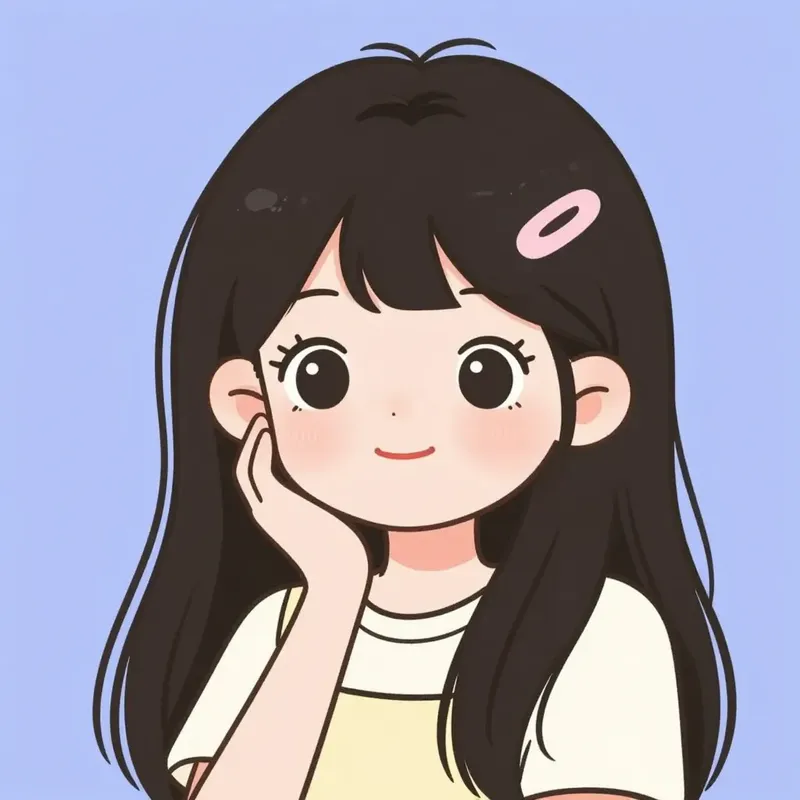
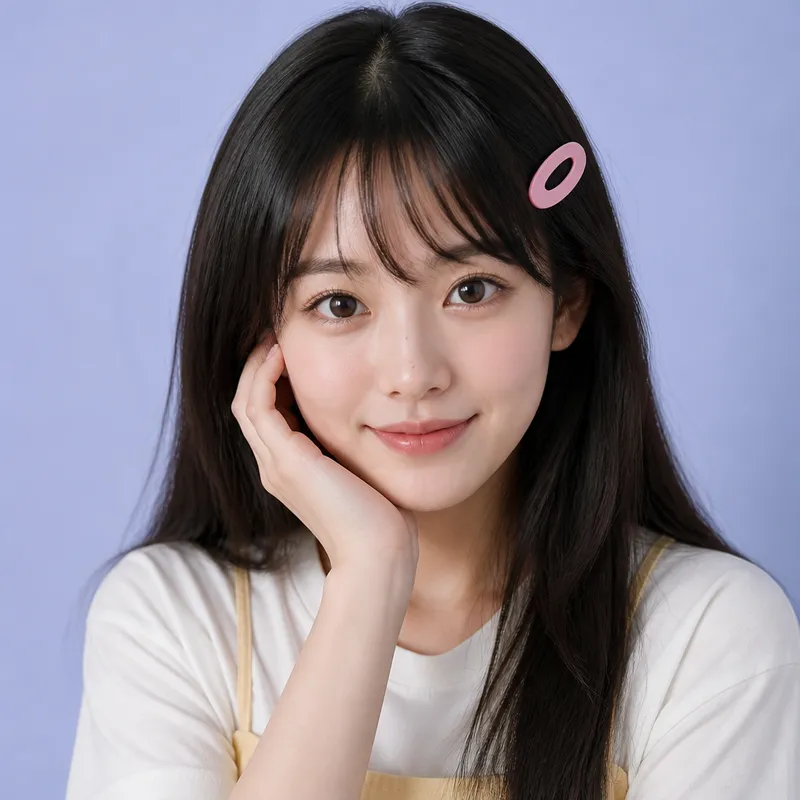
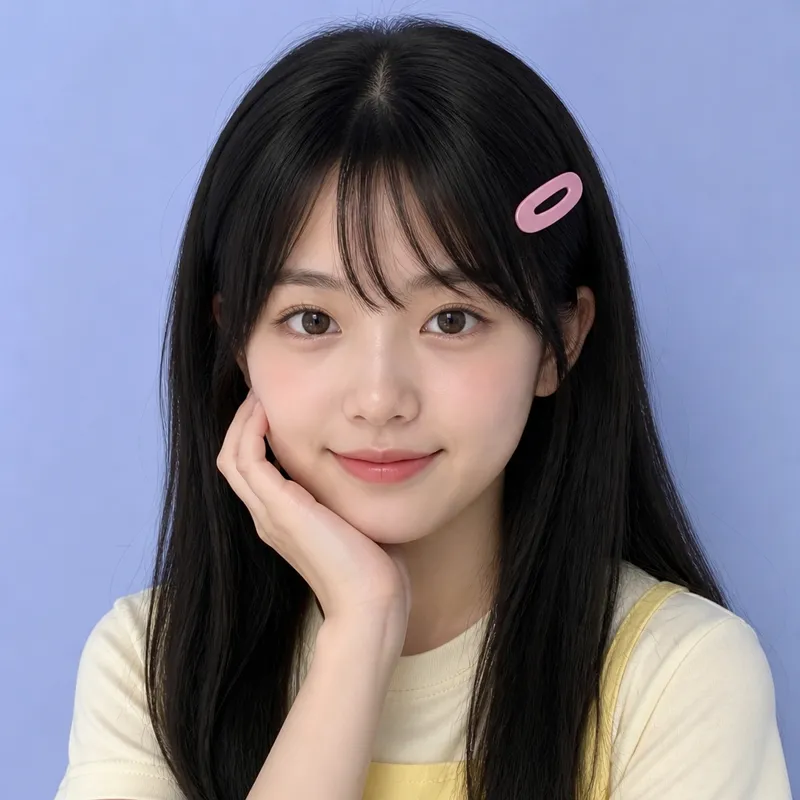
On October 22, 2026, we ran the same illustration through GPT Image 2 at the 1K tier (2 credits per image) twice: once with a four-word prompt, once with the five-part formula. Nothing else changed.
 Vague prompt
 Structured prompt
Actual prompt: “Use this illustration as the reference. Turn the girl into a photorealistic photo of a real young woman. Keep the same pose with her hand on her cheek, the long straight black hair with bangs, the pink hair clip, the gentle closed-mouth smile, the cream T-shirt with yellow overall straps, and the front-facing camera angle. Change only the rendering style: natural skin texture and soft daylight. Keep the plain light-blue background. Do not add jewelry, text, or new clothing.” (structured)
What we found:
| Detail | Vague prompt | Structured prompt |
|---|---|---|
| Pose, hand on cheek | Kept | Kept |
| Pink hair clip | Kept | Kept |
| Light-blue background | Kept | Kept |
| Cream T-shirt color | Changed to white | Kept |
| Yellow overall straps | Faded | Kept |
| Framing | Tighter crop | Close to the original |
The honest takeaway: on a simple, single-subject image, GPT Image 2 kept most details even from four words. The structured prompt did not produce a dramatically different picture; it gave us control over the specific details we named, such as the shirt color and the framing. This is one small test on one image, so treat it as a data point rather than a benchmark.
A Real Multi-Step Example: Combine, Then Continue Editing
These two generations come from our own account’s history, both with GPT Image 2.
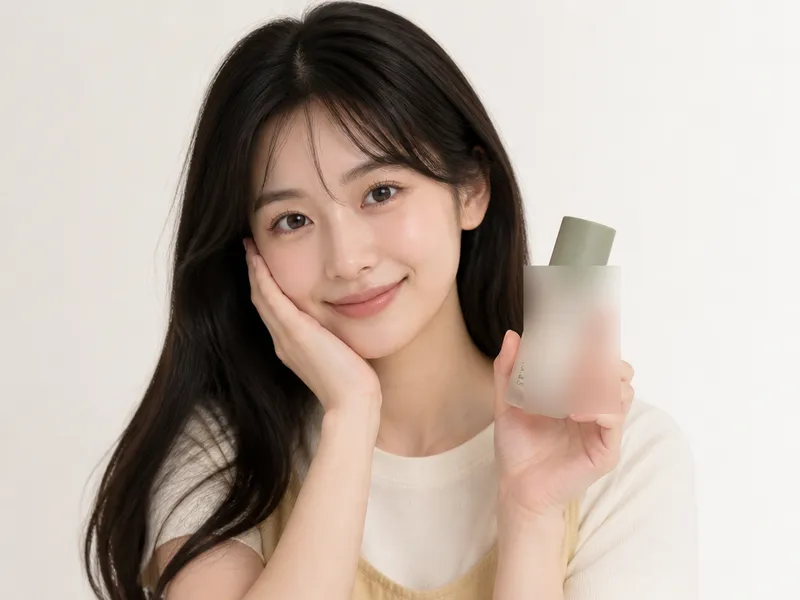
Step 1 — Combine two images (September 23, 2026, 4 credits). We uploaded the illustration above plus a product photo. The original prompt was written in Chinese; in English it reads: “Turn the girl into a real-life photo style, and have her hold the skincare product.”
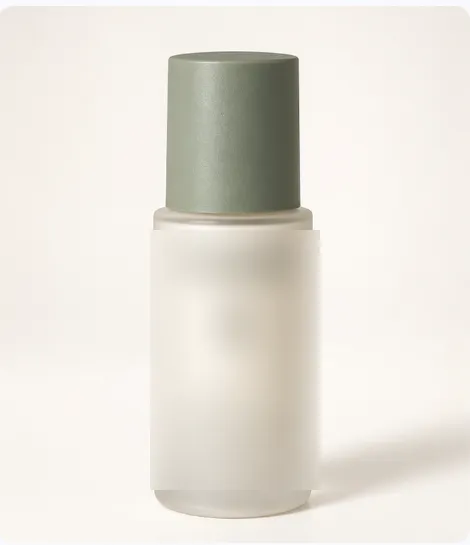 Image 2: product
 Result
Actual prompt: “Turn the girl into a real-life photo style, and have her hold the skincare product.” (translated from Chinese)
The short prompt worked because each image had one obvious role. The AI kept the pose, hairstyle, and outfit, and the bottle shape and cap color from the product photo.
Step 2 — Continue editing (September 27, 2026, 2 credits). We used the Step 1 result as the new source and applied template 5.
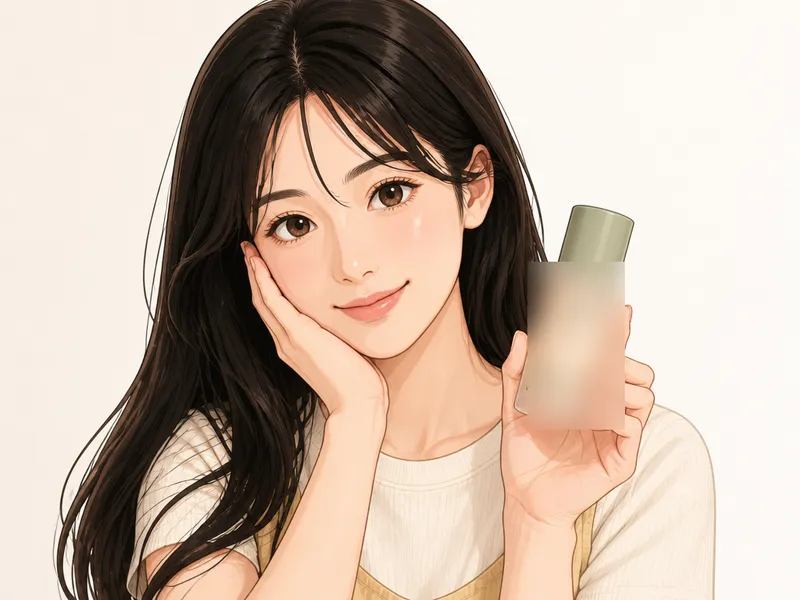
The “Keep” list carried the person, the expression, and the outfit colors through a full style change.
Why AI Changes the Wrong Thing (and How to Fix It)
| Problem | Likely cause | Prompt fix |
|---|---|---|
| The face looks like a different person | Face details were not named | Add “Keep the same face, expression, and skin tone” and avoid asking for a new pose at the same time |
| Product shape or label is distorted | The product was treated as decoration | Add “Keep the exact product shape, proportions, colors, and label position unchanged” |
| Text in the image is misspelled | Lettering is hard for most image models | Put the exact words in quotation marks, or use Ideogram 4.5 for text-heavy edits |
| Almost nothing changed | The change was too vague or buried in a long prompt | State one main change in plain words near the start of the “Change” sentence |
| Clothing colors or framing drifted | Those details were left to the AI | List them in the “Keep” part, as in our structured test |
| Two reference images were mixed up | Their roles were not assigned | Refer to “image 1” and “image 2” and say what to take from each |
When a result is wrong, change one thing in the prompt and try again. Rewriting the whole prompt makes it hard to see what fixed the problem.
Which Model to Use for Prompt-Based Edits
The same prompt can behave differently on different models. Start with the cheapest option, then switch if a detail you named keeps drifting.
| Model | Good starting point for | Credits per image (1K / 2K / 4K) |
|---|---|---|
| GPT Image 2 | Quick restyles and variations at the lowest cost | 2 / 10 / 50 |
| Nano Banana 2.1 | All-purpose edits, background swaps, product variations | 10 / 15 / 20 |
| Nano Banana PRO | Demanding brand work and multi-character references | 20 / 20 / 40 |
| Ideogram 4.5 | Text, posters, and precise detail edits | 5 / 10 / 35 (Low / Medium / High) |
Each additional reference image adds 2 credits. For a side-by-side look at two models, read Nano Banana 2.1 vs Pro; for small targeted changes, see How to Use Ideogram 4.5 Precise Edit.
Frequently Asked Questions About Image to Image Prompts
1. Can I upload a picture and use a prompt to modify it?
Yes. On Image to Image AI, sign in with Google or email, upload up to 5 JPG, PNG, or WEBP images (10 MB each), describe what to change and what to keep, and click Generate image. The AI uses your upload as the visual reference for the new image.
2. How do I keep the same face when editing a photo with AI?
Name the details to preserve in your prompt, for example: “Keep the same face, expression, hairstyle, pose, and camera angle.” Then describe only the change you want. Review the result, because preservation is not guaranteed on every generation.
3. How long should an image to image prompt be?
Long enough to cover what to keep, what to change, and what to avoid. Our tool accepts up to 2,000 characters. The structured prompt in our test was about 75 words; a four-word prompt also worked on a simple image but left more details to chance.
4. How many reference images can I use in one prompt?
Up to 5 per generation on Image to Image AI. The first image is included in the model price; each additional image adds 2 credits. Refer to them as image 1, image 2, and so on, and say what to take from each.
5. Why does the AI change parts of the image I did not ask to change?
Most image to image models generate a new image from your reference rather than editing pixels in place, so anything you leave unspecified can drift. List the details that must stay the same. For small, targeted changes, Ideogram 4.5 is designed to restore unchanged pixels.
6. Can I edit the AI result again?
Yes. Use Continue editing to make the result your new source image, or Reprompt to rewrite the instruction for the original upload. Each new generation uses credits.
7. Should I tell the AI what not to do?
Yes, briefly. A short closing line such as “Do not add jewelry, text, or new clothing” helps prevent common unwanted additions. Keep it to the few things you actually care about.
8. Is it free to try image to image prompts?
New accounts get 10 free credits after signing up with Google or email. GPT Image 2 at 1K uses 2 credits per image, so 10 credits cover up to 5 images. Sign-up is required, and other models or higher resolutions use more credits.
Responsible Use
Only upload images you own or have permission to use. Get consent before editing photos of other people, and do not use image to image prompts to impersonate someone or to create misleading images of real events. Review every result before publishing it.