Edit with Text Prompts
Describe what you want to add, remove, replace, recolor, or change in everyday language.
AI-powered photo editing
Upload a photo and edit it with simple text prompts. Remove unwanted objects, replace backgrounds, change outfits, hairstyles, lighting, colors, or styles, and make targeted changes while preserving the parts you want to keep—no layers or manual retouching required.
Upload an image and describe the change you want.
Sign in to get your first free image
At a glance
Use the editor to make targeted changes to an existing image with natural-language instructions.
Describe what you want to add, remove, replace, recolor, or change in everyday language.
Upload your own JPG, PNG, or WEBP image instead of starting from a blank canvas.
Change a background, object, outfit, color, lighting, hairstyle, or other visual detail.
Tell AI which faces, products, poses, compositions, or other elements should remain unchanged.
New accounts get one free GPT Image 2 edit at 1K after signing in with Google.
Download generated results without a watermark and continue editing the result if needed.
How it works
You do not need masks, layers, brushes, or complicated photo editing software. Make an AI photo edit by describing the result you want in everyday language.
Start with your own JPG, PNG, or WEBP photo. A clear source image gives the AI more visual information to preserve while making your requested changes.
Write a simple editing prompt such as “remove the person in the background,” “change the jacket to black,” or “replace the room with a modern office.” You can also tell the AI exactly what should stay unchanged.
Generate your edited image, compare it with the original, and refine the prompt if needed. Download the result or use it as the starting point for another edit.
AI image editing tools
From one small correction to a complete visual refresh, use the AI photo editor to modify specific parts of an existing image without rebuilding everything manually.
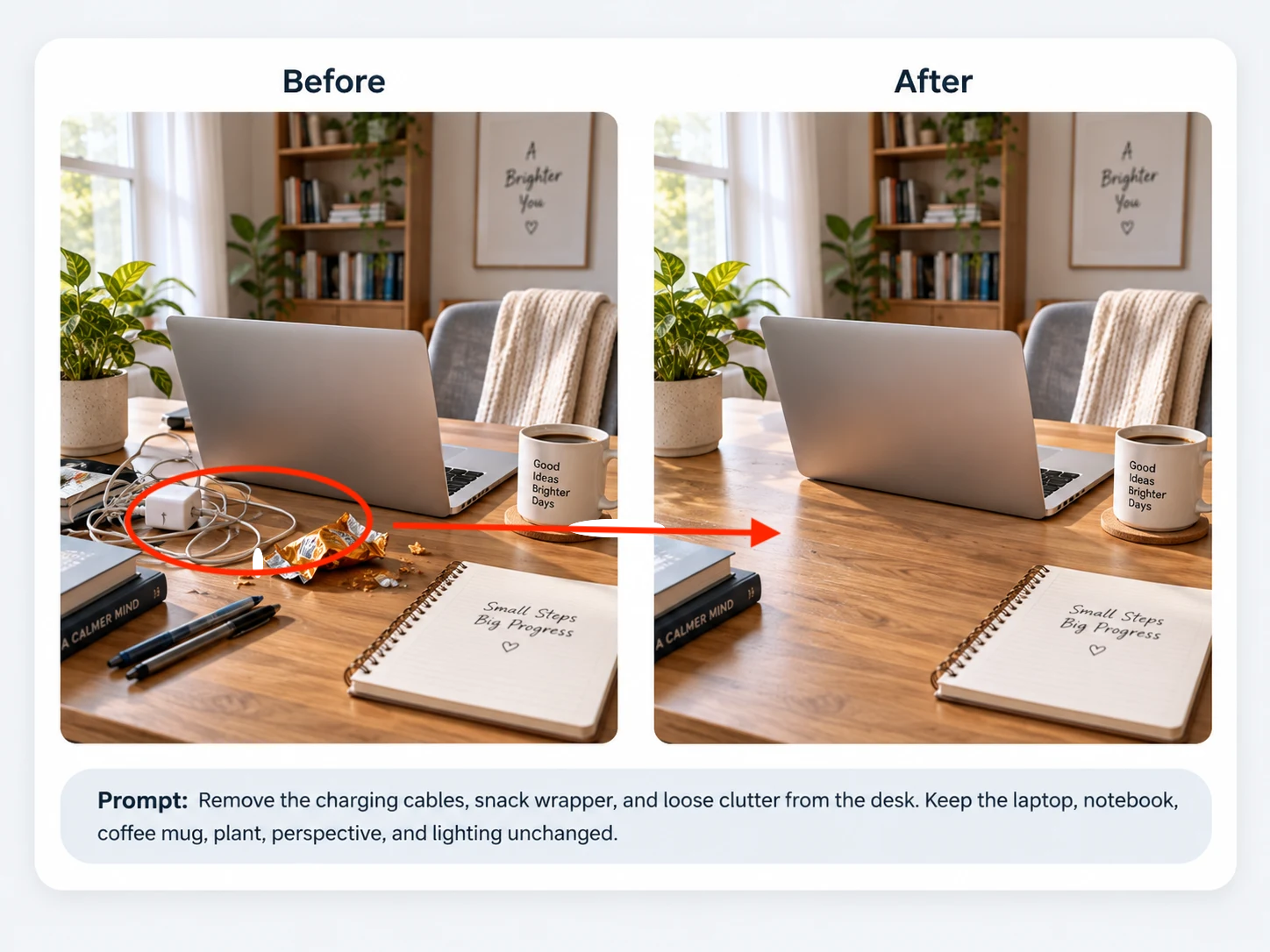
Remove photobombers, signs, clutter, furniture, products, or other unwanted elements. Describe what should disappear and let AI reconstruct the surrounding scene naturally.
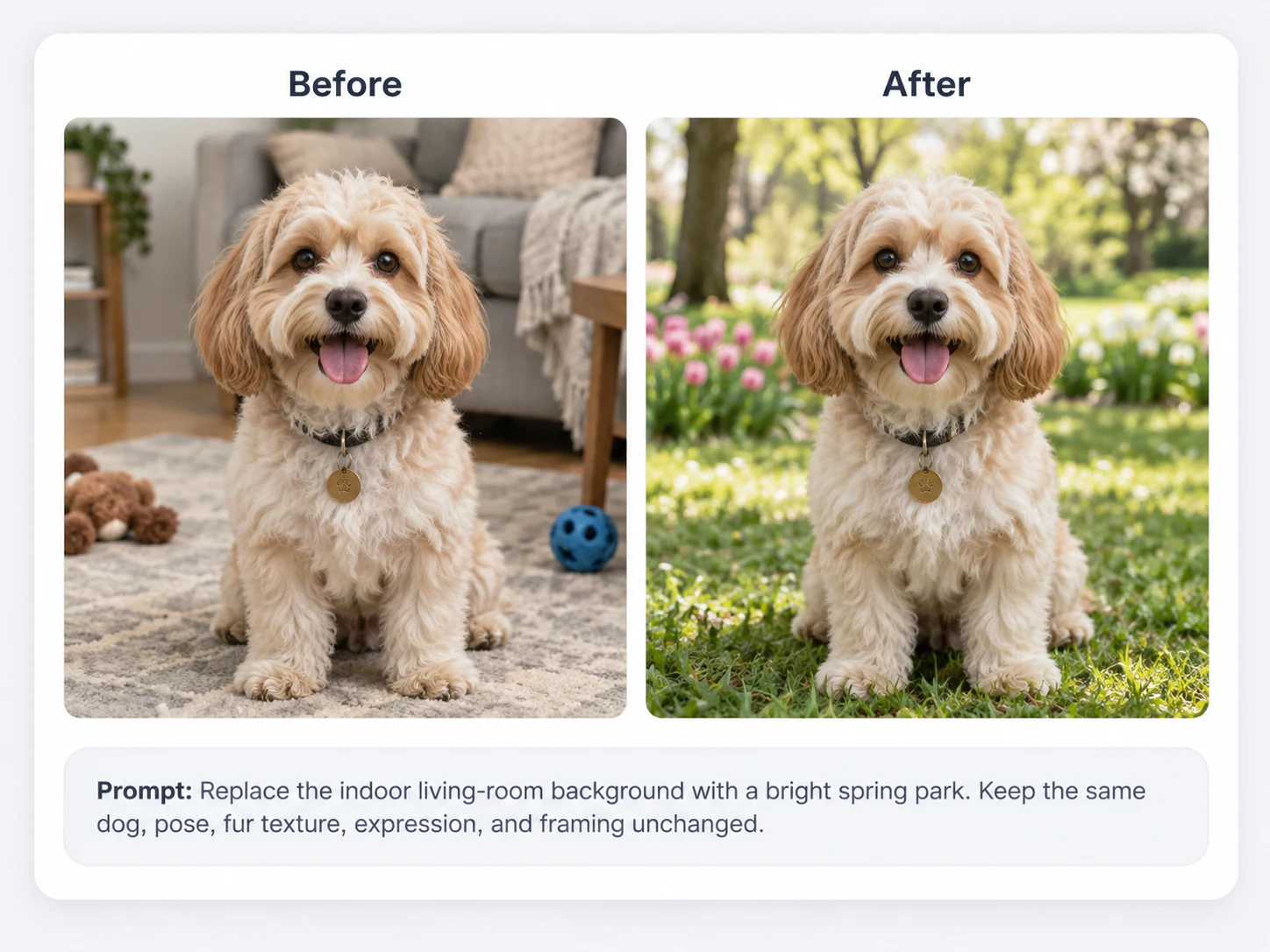
Move a person or product into a studio, office, beach, street, interior, or any environment you describe while keeping the main subject recognizable.
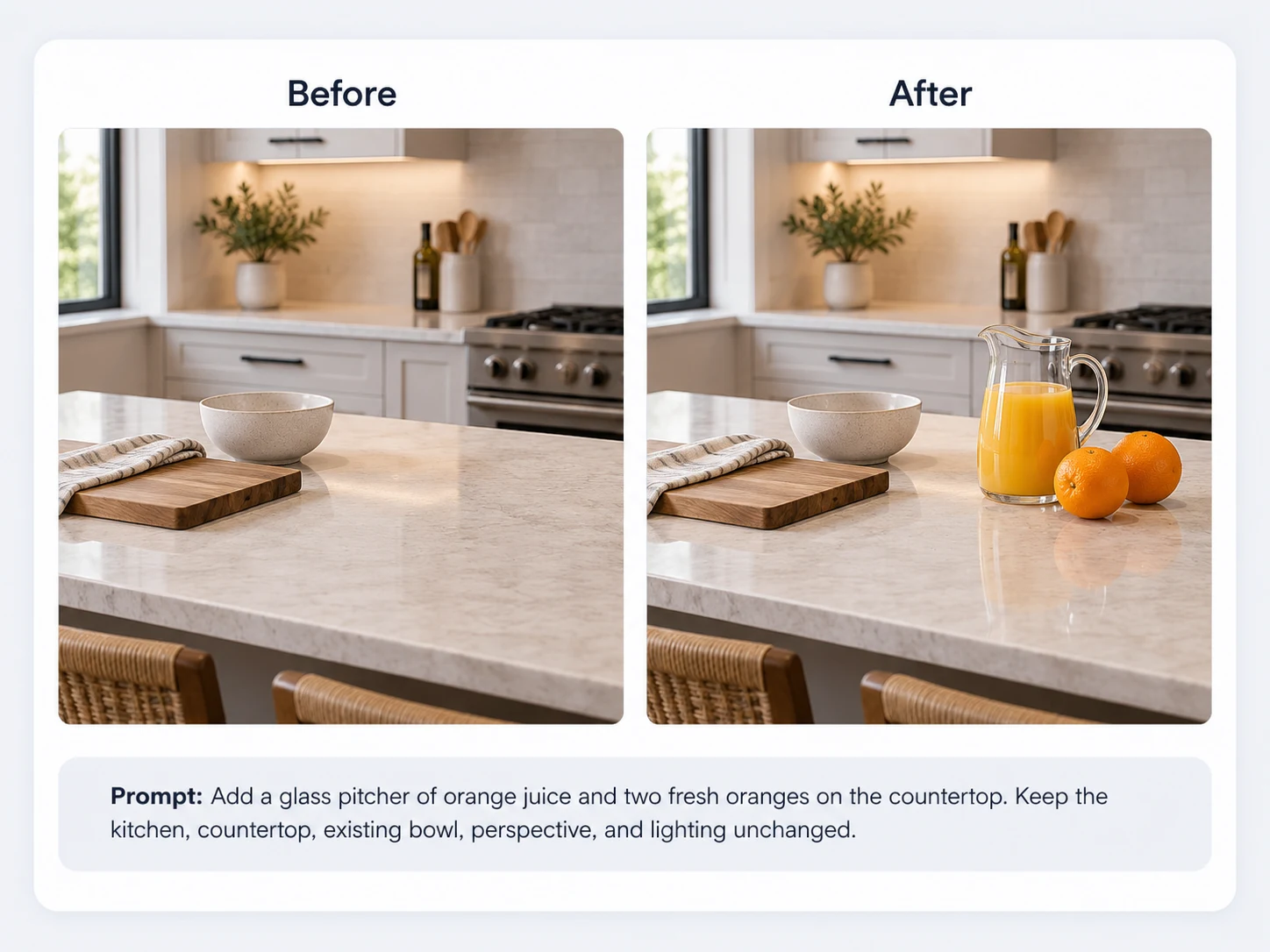
Add new elements to a photo or replace an existing object. Specify the new object, its position, material, color, and how it should fit the original lighting and perspective.
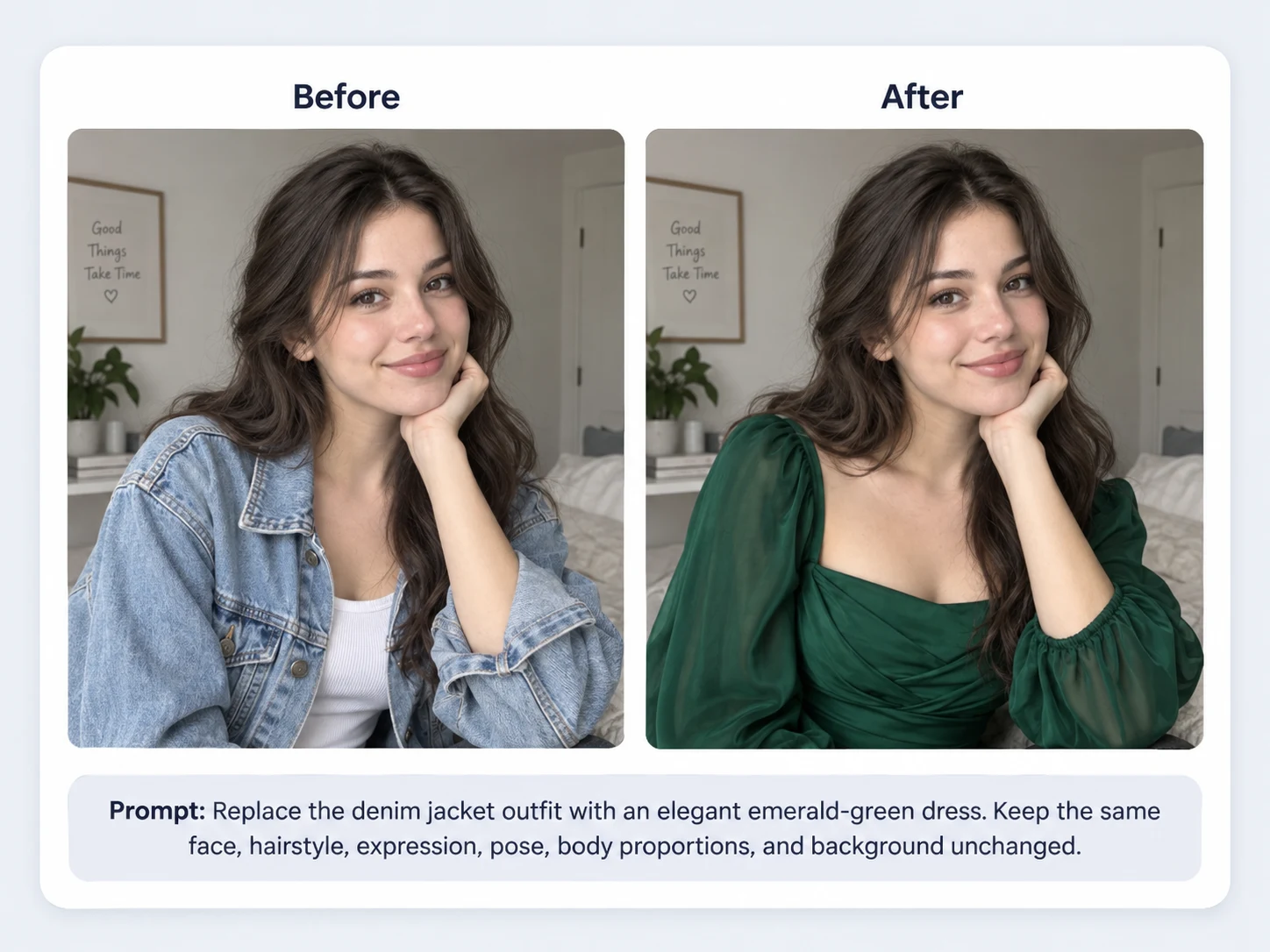
For a focused outfit change, use the AI Clothes Changer.
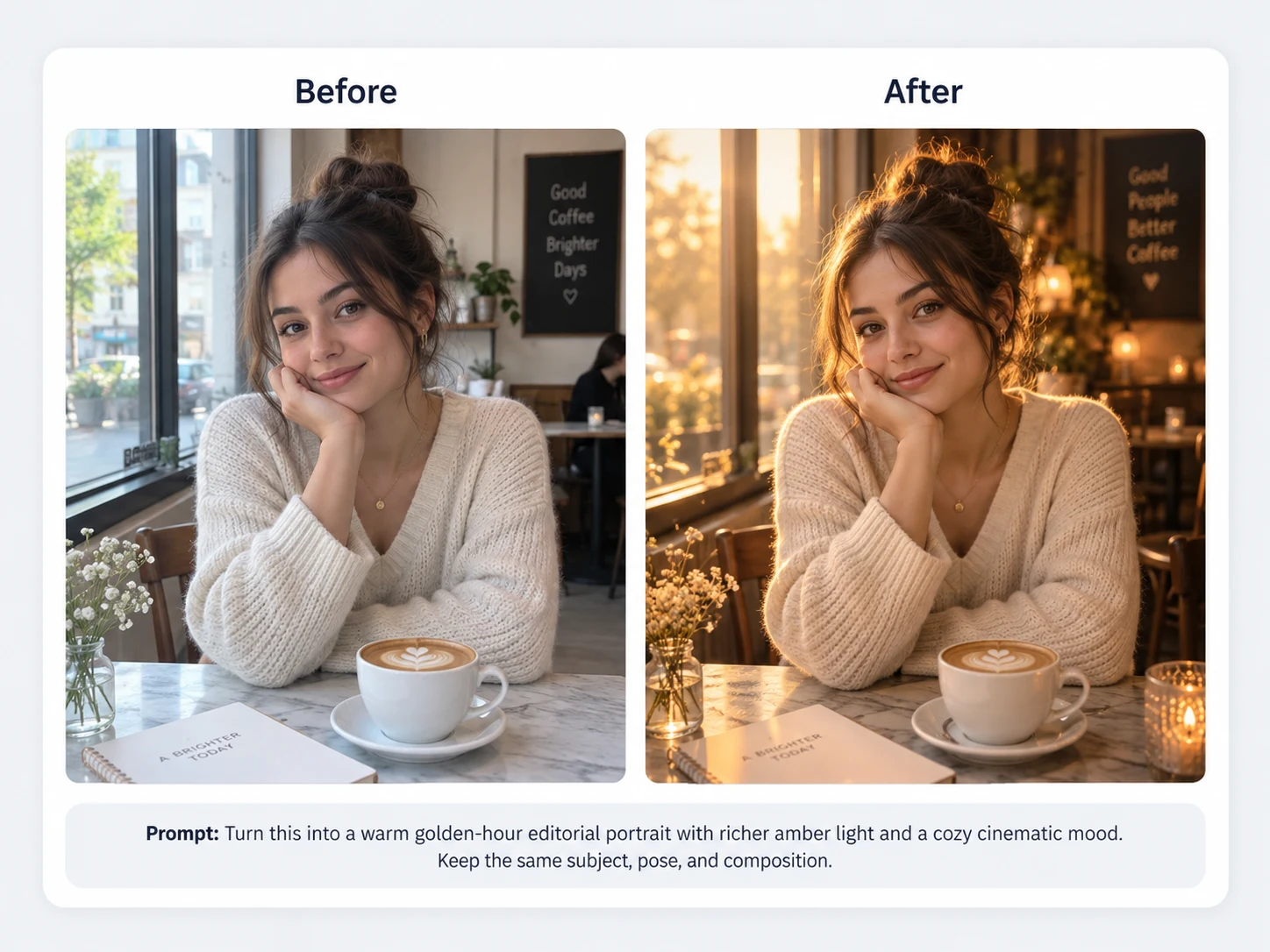
Relight a flat photo, change an object's color, create warmer or cooler lighting, adjust the atmosphere, or give an image a more cinematic or professional finish.
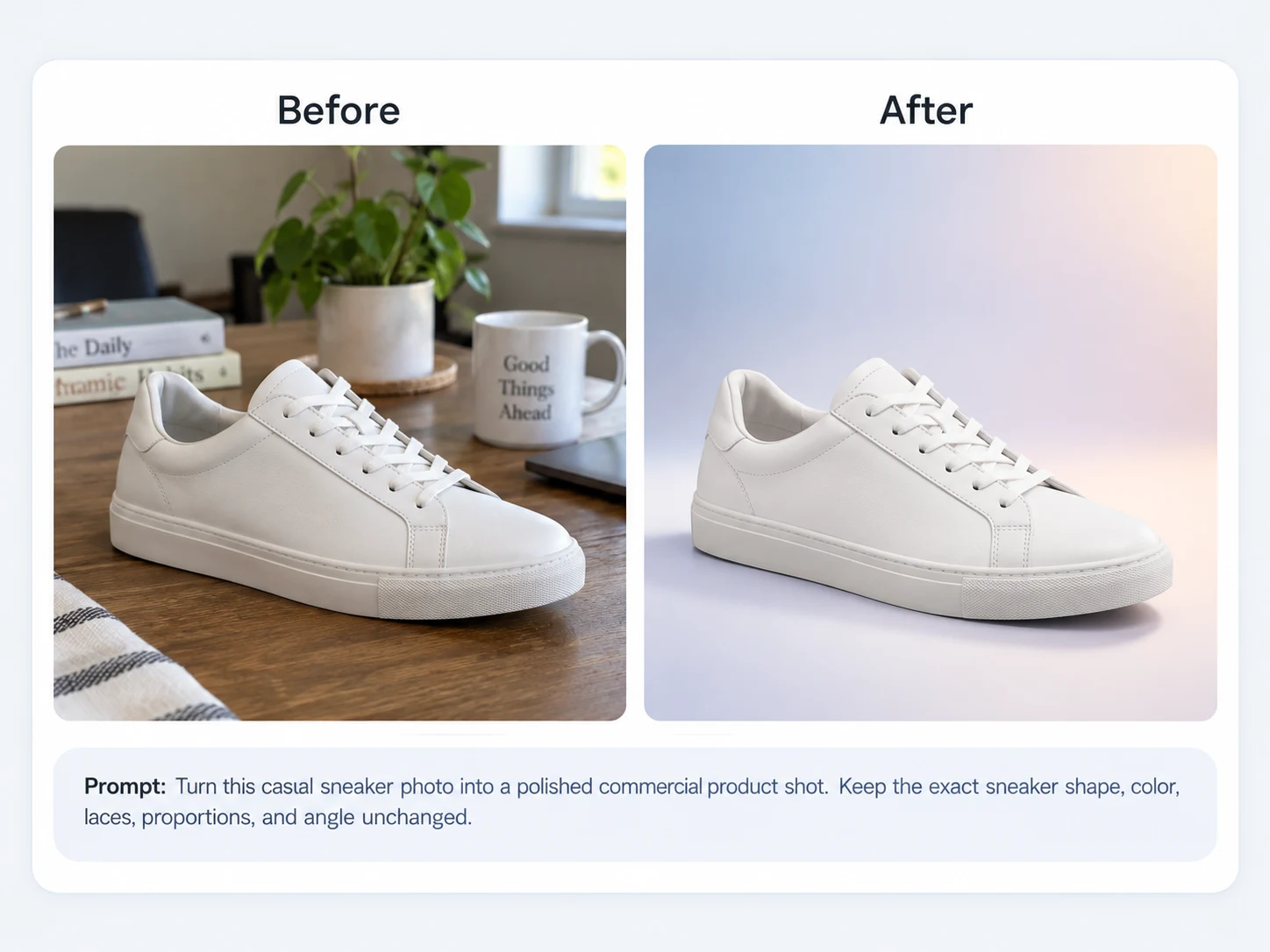
Turn an ordinary product photo into cleaner catalog imagery, lifestyle scenes, seasonal campaign visuals, or advertising creatives while preserving important product details.
Prompt-based AI Photo Editor
Traditional image editors ask you to choose tools before you can make a change. A prompt-based AI image editor works the other way around: describe the finished result, and the AI interprets the instruction for you.
The best prompts explain both what should change and what should stay the same. This helps you make targeted edits instead of accidentally changing the entire image.
Get a prompt from an image →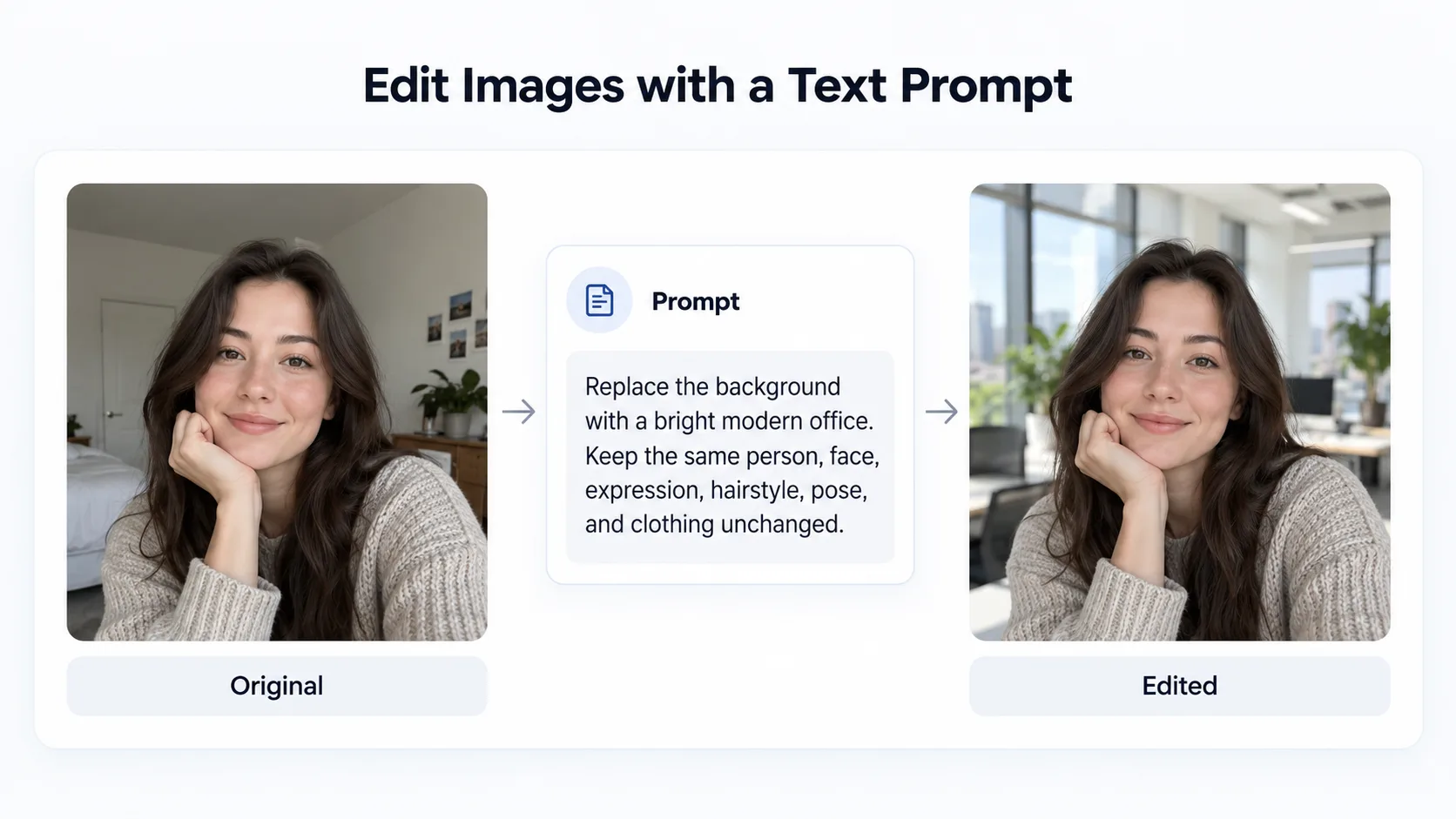
AI photo editing examples
See how one clear prompt can change a specific part of an image while preserving the parts that already work.
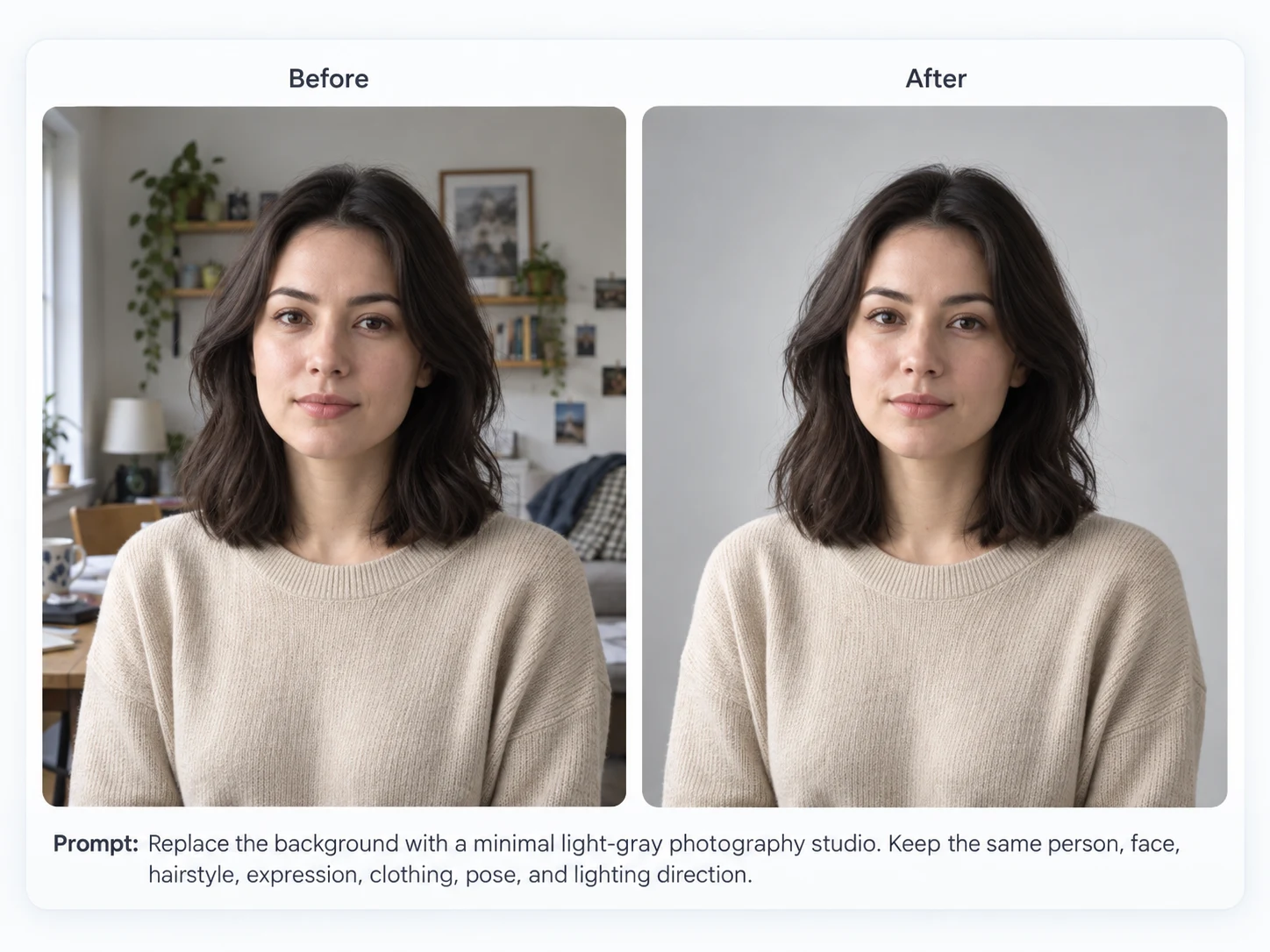
Background Edit
Keep the person exactly as they appear while replacing a distracting room with a clean professional environment.
Prompt
Replace the background with a minimal light-gray photography studio. Keep the same person, face, hairstyle, expression, clothing, pose, and lighting direction.
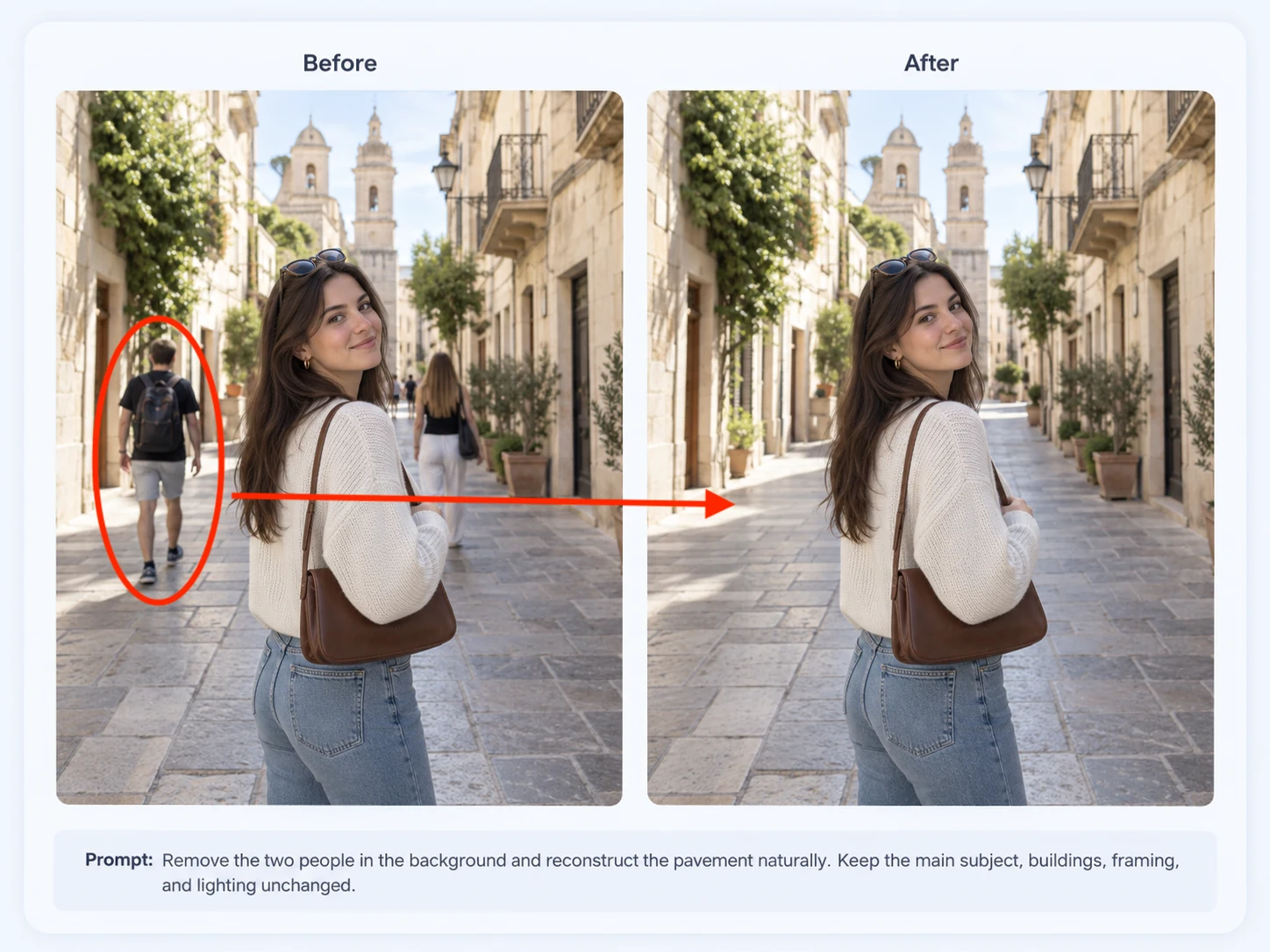
Object Removal
Clean up travel, street, family, or real-estate photos without manually cloning the background.
Prompt
Remove the two people in the background and reconstruct the pavement naturally. Keep the main subject, buildings, framing, and lighting unchanged.
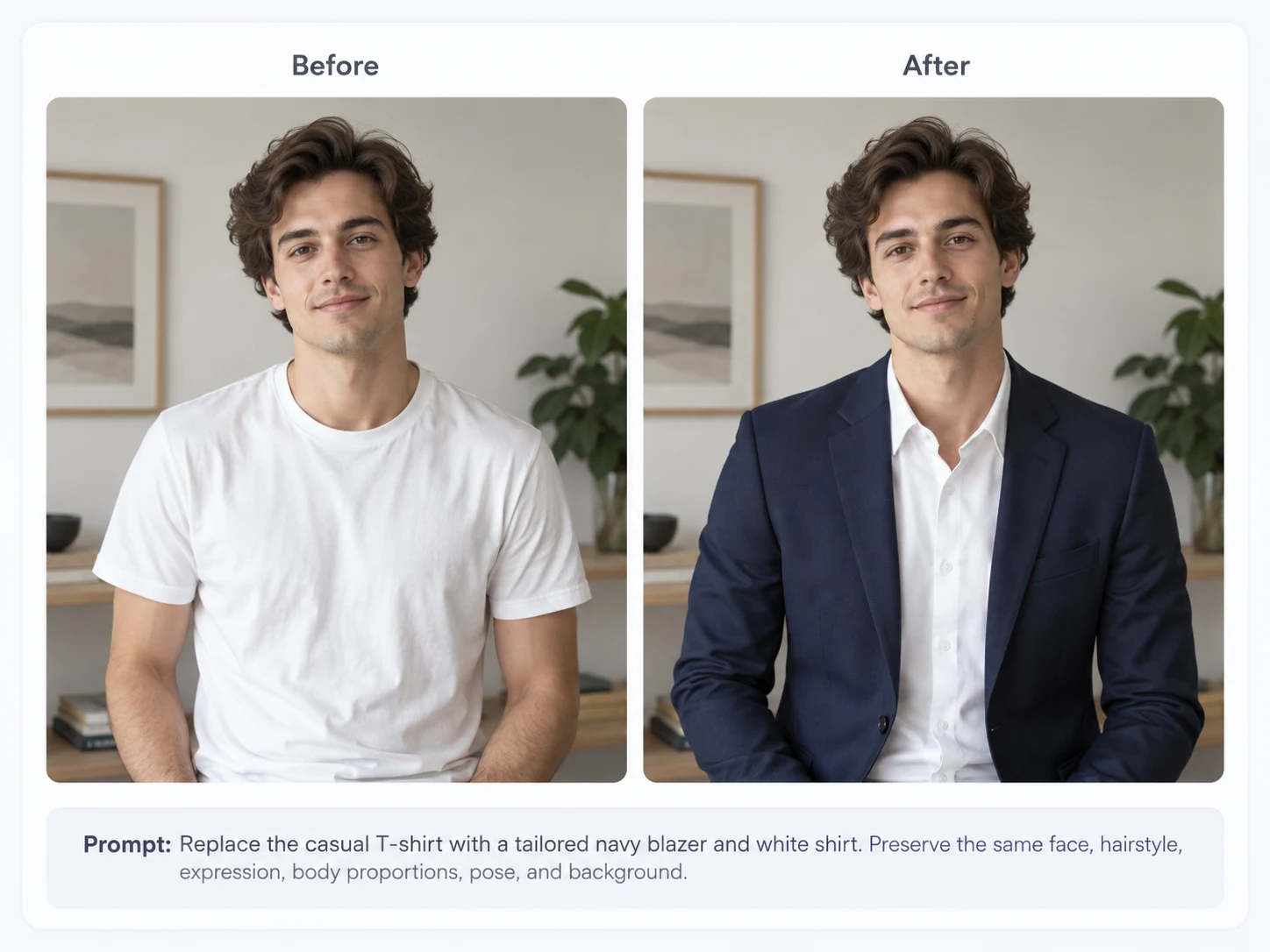
Fashion Edit
Explore a different wardrobe without changing the person's recognizable features or pose.
Prompt
Replace the casual T-shirt with a tailored navy blazer and white shirt. Preserve the same face, hairstyle, expression, body proportions, pose, and background.
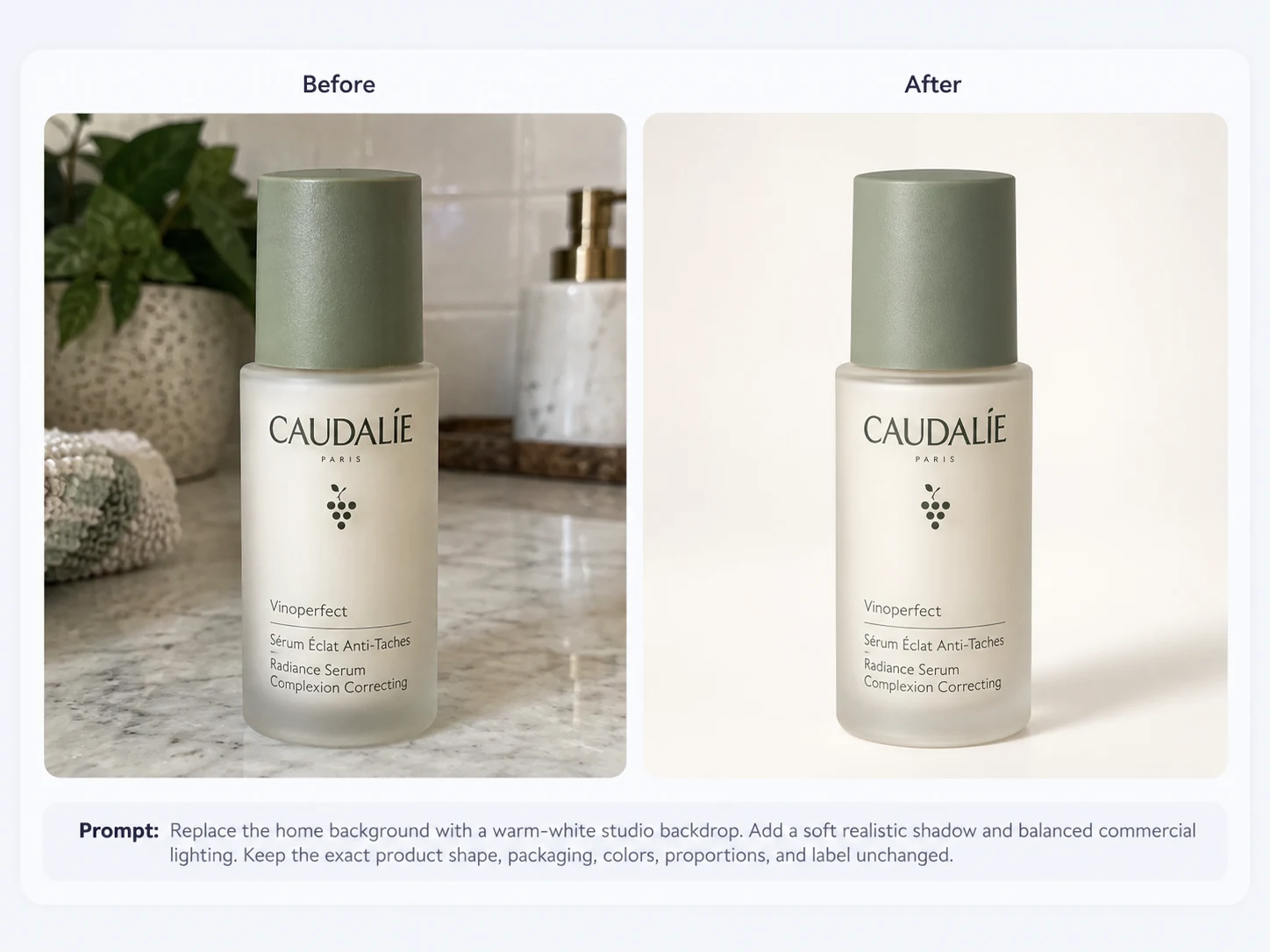
Product Photography
Clean up an ordinary seller photo and create a more polished visual for an online store or campaign.
Prompt
Replace the home background with a warm-white studio backdrop. Add a soft realistic shadow and balanced commercial lighting. Keep the exact product shape, packaging, colors, proportions, and label unchanged.
Better AI edits
Clear instructions help the editor make the change you asked for without unnecessarily changing the rest of the image.
Instead of saying “make this better,” describe exactly what should be added, removed, replaced, recolored, or changed.
If identity or product accuracy matters, explicitly state which faces, product details, poses, text, or composition should remain unchanged.
For larger changes, editing one or two elements at a time can give you more control than requesting many unrelated changes at once.
AI-powered editing
An AI image editor turns natural-language instructions into visual edits. Instead of manually selecting pixels, creating masks, adjusting dozens of settings, or rebuilding a composition, simply explain the result you want.
Tell the editor what to add, remove, replace, recolor, or restyle using the same language you would use to explain the change to another person.
Specify the face, pose, product shape, composition, camera angle, text placement, or other visual details that should remain unchanged.
Use a generated result as the source for another AI image edit. Make one change at a time or keep refining an image until it matches your idea.
Choose from the available AI image models and output settings based on the type of edit, detail level, resolution, and creative control you need.
Made for everyday editing
Clean product photos, replace backgrounds, adjust lighting, and create consistent visual assets for listings and ads.
Refresh social images, remove distractions, try new visual directions, and adapt existing photos for new posts and campaigns.
Quickly test advertising concepts, environments, colors, product placements, and creative variations before committing to a full production workflow.
Change a background, outfit, hairstyle, lighting, or small visual detail while keeping the person recognizable.
Remove clutter, change furniture and materials, adjust room lighting, or preview another interior direction from an existing photograph.
Make useful image edits without learning layers, masks, selection tools, or complicated professional editing software.
Choose the right workflow
Use the AI Image Editor when you already like most of an image and want to make a specific change—such as removing an object, replacing a background, changing an outfit, adding an element, or adjusting one visual detail.
If you want to use an existing image as inspiration and create a more substantially reimagined version, use our Image to Image AI Generator instead.
FAQ
An AI image editor lets you modify an existing image using artificial intelligence. Instead of manually using layers, masks, brushes, and selection tools, upload a photo and describe the change you want with a text prompt. AI can then add, remove, replace, recolor, or restyle visual elements in the image.
Upload the image you want to edit, write a clear prompt describing what should change and what should remain unchanged, then generate the result. Review the edited image and refine your prompt if you want to make another change.
Yes. The editor is designed for prompt-based image editing. For example, you can ask AI to remove a person, replace the background, change clothing, add an object, adjust lighting, or recolor part of a photo using written instructions.
New accounts receive enough free credits for one GPT Image 2 edit at 1K after signing in with Google. Additional generations use account credits. You can view current plans and credit options on the pricing page。
Yes. Google sign-in is currently required before generating an image. New accounts receive the free credits available for the first supported edit.
You can remove objects or people, replace backgrounds, add new elements, change outfits or hairstyles, recolor objects, adjust lighting and mood, restyle photos, and create edited product visuals from an existing image.
State the constraint directly in your prompt. For example: “Keep the same face, expression, pose, camera angle, and composition; only change the background.” For a product, specify that its shape, proportions, packaging, colors, label, and logo should remain unchanged.
An AI image editor is best for making targeted changes to an existing image. Image-to-image AI is broader: it uses an existing image as a visual reference to generate another image, making it useful for restyling, recreating, generating variations, or combining references. Try our Image to Image AI Generator if you want a larger transformation.
The editor supports JPG, PNG, and WEBP source images up to 10 MB. For better editing results, start with a clear image where the subject or area you want to modify is easy to see.
Yes. After generating an edit, you can refine the prompt, create another variation, or use the generated image as the source for your next edit.
Yes. Describe the specific element you want to change and explicitly state which parts of the image should remain unchanged. Clear constraints help the AI make a more targeted edit.
AI image editing regenerates visual content rather than changing pixels in exactly the same way as a traditional photo editor. To reduce unwanted changes, clearly specify both the requested edit and the important details that should remain unchanged.
More tools
Use a reference image to create new styles, scenes, and visual variations.
Create original images from text prompts without uploading a reference image.
Turn visible image details into an editable, reusable AI prompt.
Turn a photo into anime, manga, chibi, and other illustrated styles.
Create a new outfit from a person photo, prompt, or clothing reference image.
Improve photo clarity, resolution, and fine details online.
Free to start
Try the AI image editor online without installing software. New accounts receive one free GPT Image 2 edit at 1K after signing in with Google. Your first edit is a simple way to test prompt-based image editing before purchasing additional credits.
Paid plans unlock additional credits, more AI models, multiple reference images, and higher-resolution options.